
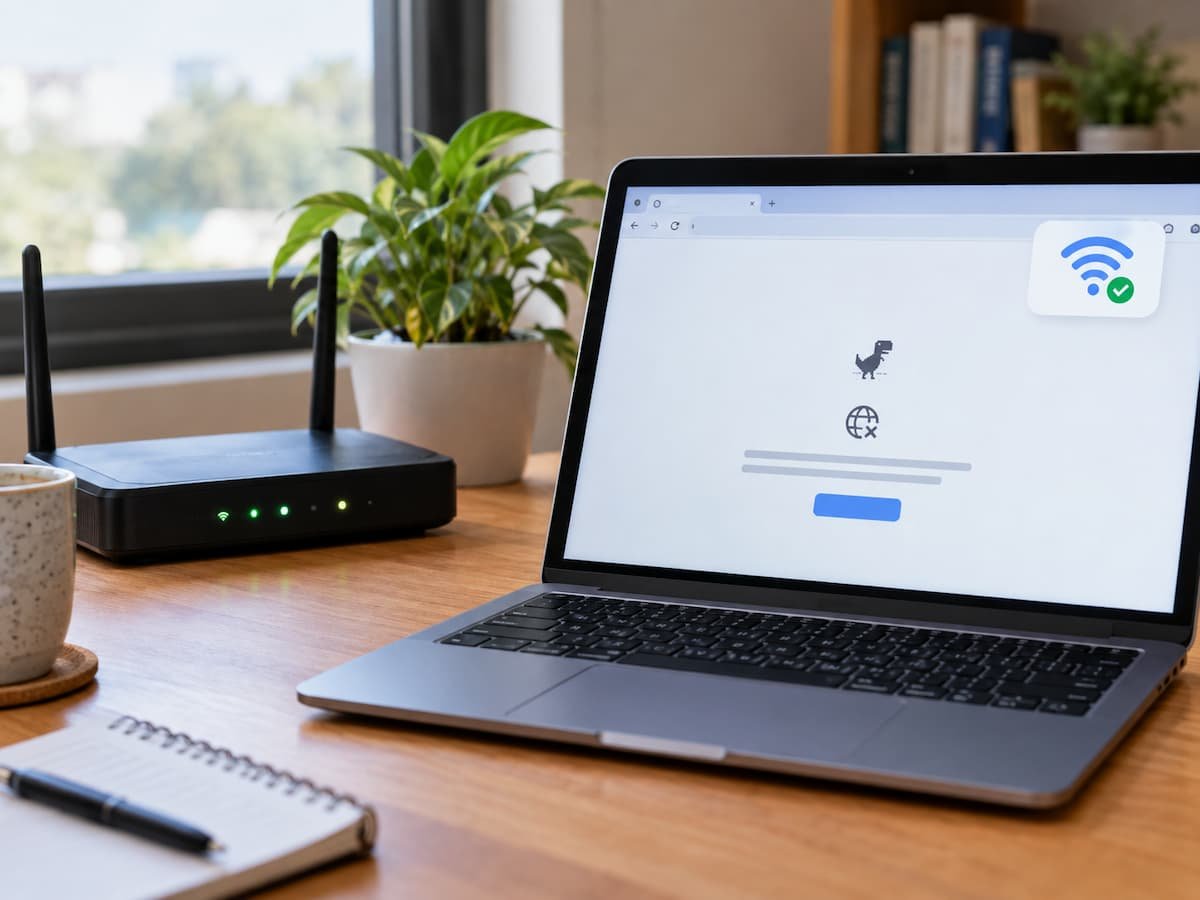
A Wi-Fi connection and an internet connection are related, but they are not the same thing. When a device says “Connected” to Wi-Fi while websites, apps, or online services refuse to load, the device has usually completed at least one part of the network process: it has established a wireless connection with the local access point or router. That does not prove that the router has working internet service, that the device received a usable IP configuration, that DNS is functioning, or that the destination server can be reached.
That distinction is the starting point for troubleshooting this problem. Instead of immediately restarting everything or changing DNS servers, identify which layer is actually failing. The same “internet is not working” symptom can come from a bad DHCP assignment, a local router problem, a DNS failure, a proxy or VPN, an operating-system configuration issue, an application-specific problem, an ISP outage, or a remote website that is unavailable. Windows itself makes a similar distinction: its Wi-Fi status can indicate that the device is connected while internet access is still blocked by an application, firewall, or other network condition.
What “Connected to Wi-Fi” Actually Proves
When you join a wireless network, your device communicates with an access point using the Wi-Fi protocol. In a typical home network, the access point is integrated into the same router that provides DHCP, routing, NAT, and access to the ISP connection. A successful Wi-Fi association therefore tells you that the wireless portion of the connection is functioning well enough for the device to communicate locally.
It does not, however, prove that the router itself can reach the internet. The router may have lost its WAN connection, failed to obtain an address from the ISP, encountered a service outage, or be experiencing a configuration problem. The device may also have connected to Wi-Fi but received an unusable network configuration. Microsoft specifically notes that an address in the 169.254.x.x range can indicate that Windows was unable to obtain an IP address from the router through DHCP.
There is another important distinction: internet connectivity can work while a particular application or website fails. Chrome’s own troubleshooting documentation separates device, network, browser, firewall or antivirus, and website-side causes because a loading error does not automatically mean the entire internet connection is down.
The useful question is therefore not “Why is my Wi-Fi broken?” but “Which part of the path from this device to the destination is failing?”
Start by Finding Out How Wide the Failure Is
Before changing anything, compare the affected device with another device using the same Wi-Fi network. A laptop that cannot load anything while another phone on the same network works normally points toward the laptop, its operating system, browser, VPN, DNS configuration, or network adapter. If several devices connected to the same router fail at approximately the same time, the router, WAN connection, DNS service, or ISP becomes much more relevant.
The comparison becomes even more useful if you test a different network. Connect the affected device to a phone hotspot or another trusted Wi-Fi network. If websites immediately work there, the device’s basic networking hardware and software are less likely to be the primary problem, while the original router, local network configuration, or ISP connection deserves closer inspection. Android’s official troubleshooting guidance similarly recommends switching between Wi-Fi and mobile data as a way to distinguish connection problems.
A simple symptom comparison can therefore narrow the investigation considerably:
| Symptom | What It Suggests | What To Check | Likely Area |
|---|---|---|---|
| One device fails, others work | Device-specific problem | IP configuration, VPN, proxy, browser, adapter | Device/OS |
| Every device fails | Shared connection problem | Router WAN status, modem, ISP | Router/ISP |
| Only one website fails | Destination or DNS-specific problem | Other sites, DNS resolution, HTTP status | DNS/remote server |
| Browser fails but another app works | Application-specific issue | Browser extensions, proxy, cache, security software | Application |
| Names fail but known IP connectivity works | DNS problem | DNS server and resolver configuration | DNS |
| Wi-Fi works but Ethernet also fails | Wireless hardware is less likely | Router WAN and ISP | Router/ISP |
| Internet works through another network | Original network is implicated | Router, DHCP, DNS, ISP | Local network/ISP |
The important point is that none of these observations alone proves a particular cause. They reduce the number of plausible causes.
Check the Network Configuration Before Changing It
Once the problem appears to affect one device, inspect the device’s network configuration. A normally configured home connection generally receives an IP address, subnet information, a default gateway, and DNS server information automatically. If one of these pieces is missing or incorrect, the Wi-Fi association can remain active while internet traffic fails.
On Windows, ipconfig can show the current IPv4/IPv6 configuration, default gateway, and DNS servers. The particularly useful information is whether the device has a normal address for the local network and whether a default gateway is present. A 169.254.x.x address is significant because Windows uses that type of address when it cannot obtain a suitable address through DHCP; it is not evidence that the ISP has assigned that address as normal internet service.
macOS provides equivalent network information through its Network settings, although the interface differs from Windows. Apple also documents renewing the DHCP lease as a way of obtaining a fresh local network address when the existing assignment has become invalid or conflicts with another device.
On Android, the exact menus vary by manufacturer and Android version. Current Android documentation places Wi-Fi and related advanced settings under Network & internet, with options for network usage, proxy configuration, randomized MAC addresses, and Private DNS depending on the device. iPhone provides network-specific settings under Settings → Wi-Fi → the information button, including DNS and HTTP proxy configuration.
This is why copying a Windows-specific repair procedure onto a phone is usually a poor diagnostic strategy. The underlying networking concepts are shared, but the operating systems manage them differently.
The Default Gateway Tells You Where the Local Network Ends
The default gateway is one of the most useful pieces of information in this situation. In a typical home network, it is the router’s local address. Traffic destined for outside the local subnet is sent toward that gateway.
If the device cannot communicate with its gateway, there is little value in investigating remote websites or changing DNS providers yet. The failure is still close to the device: Wi-Fi isolation, a bad DHCP configuration, an adapter problem, router malfunction, or another local-network issue could be responsible.
If the device can communicate with the gateway but cannot reach external destinations, the investigation moves outward. The router may have lost its WAN connection, the ISP may be unavailable, or the router may have a routing or DNS problem. Microsoft’s Windows guidance uses successful communication with the router as evidence that the local Wi-Fi link is functioning, after which modem or ISP problems become more relevant.
This layered approach prevents a common mistake: repeatedly changing settings on the computer when the actual failure is upstream of it.
DNS Can Make a Working Internet Connection Look Broken
DNS is often blamed for every browsing failure, but it has a specific job. DNS translates names such as example.com into the network addresses required to reach the service. Google describes DNS as an essential part of the web infrastructure because clients perform DNS lookups before connecting to many websites.
That creates an important diagnostic distinction. If a device has a valid IP configuration and can communicate beyond the local network, but domain names consistently fail to resolve, DNS becomes a strong suspect. If neither direct network connectivity nor DNS works, changing DNS servers may accomplish nothing because the underlying connection is already broken.
A useful way to investigate DNS is to compare the behavior of several unrelated websites rather than repeatedly loading one page. You can also inspect the DNS records for a particular domain when the failure appears limited to one website. TechTalksX’s DNS Record Explorer can help explain what records a domain publishes and whether the issue appears to involve a particular hostname or record type.
Do not treat a different DNS provider as a universal repair. Changing DNS changes the resolver responsible for answering DNS queries; it does not repair a dead router, failed Wi-Fi adapter, ISP outage, or remote web server. Google also documents encrypted DNS transports such as DNS over HTTPS and DNS over TLS, which change how DNS queries travel between a client and resolver.
Android’s current Private DNS feature is another reason this layer can be overlooked. Android documents Private DNS as protecting DNS questions and answers, rather than providing general protection for all network traffic. A misconfigured or unreachable Private DNS provider can therefore affect name resolution without necessarily indicating a failure of the Wi-Fi radio or local wireless connection.
When the Browser Is the Problem
If one browser cannot load pages but another browser or another internet-dependent application works, stop treating the problem as a general Wi-Fi failure.
Modern browsers have their own networking behavior, extensions, proxy integration, cached information, security controls, and sometimes encrypted DNS configuration. Chrome’s current troubleshooting guidance identifies extensions, browser data, device security software, memory pressure, network equipment, and website-side problems as possible contributors to loading failures.
A useful test is to compare a normal browsing window with another browser or a private/incognito window. If the problem disappears in one environment, the result points toward browser state, extensions, stored site data, or browser-specific configuration rather than proving that Wi-Fi itself is defective.
Proxy settings deserve particular attention on managed computers. A proxy can intentionally redirect web traffic through another server. If that server is unavailable, the browser may fail even though ordinary network connectivity remains intact. The same principle applies to VPN software: a device can have functioning Wi-Fi while a VPN tunnel, always-on configuration, or filtering application prevents traffic from reaching its destination.
Android, for example, supports VPN configurations and always-on VPN behavior, and some managed environments can block connections that do not pass through the VPN.
Public Wi-Fi Has a Different Failure Mode
A hotel, airport, café, university, or other public network can show a Wi-Fi connection before you have completed its sign-in process. The access point may allow your device onto the local wireless network while requiring a captive portal before unrestricted internet access is granted.
This can produce a particularly confusing symptom: Wi-Fi says connected, signal strength looks good, but ordinary websites do not load. Chrome specifically identifies captive portals as a situation in which a user may need to sign in before internet access becomes available.
The diagnostic clue is the network context. If the problem occurs only on a public network and another device displays a sign-in page, look for the network’s authentication or terms-and-conditions page rather than changing system DNS settings. A DNS change may actually make diagnosis more confusing if the network expects its normal captive-portal process.
Router Problems Can Affect Every Device Differently
A router is not simply a wireless transmitter. In a typical home installation it may simultaneously provide Wi-Fi access, DHCP, DNS forwarding, routing, NAT, firewalling, and the connection to the ISP. One component can fail while the others continue functioning.
For example, wireless association may remain stable while the router’s WAN connection is down. Alternatively, the router may have internet connectivity but be struggling with DHCP leases or DNS forwarding. If every device experiences the same failure, inspect the router’s WAN status and compare wired and wireless clients where possible.
Restarting the modem/router can be a legitimate diagnostic step because it forces the equipment to re-establish its upstream connection. Microsoft documents power-cycling modem and router equipment as part of its current Windows connectivity troubleshooting guidance.
That is different from performing a factory reset. A restart preserves configuration; a factory reset can erase wireless names, passwords, ISP-specific settings, port forwarding, parental controls, and other custom configuration. Factory-resetting a router should therefore not be treated as a routine early troubleshooting step.
Wi-Fi Compatibility Is Not the Same as Internet Availability
A device can associate with a Wi-Fi network even when the network’s performance or compatibility is poor. Frequency bands, channel conditions, supported Wi-Fi generations, channel widths, roaming behavior, and client capabilities can all influence the wireless link.
The Wi-Fi standard itself is worth checking when the issue appears only on a particular device or band. The TechTalksX Wi-Fi Standard Explorer can help translate terms such as Wi-Fi 5, Wi-Fi 6, Wi-Fi 6E, and Wi-Fi 7 into their underlying capabilities.
However, poor Wi-Fi quality normally produces a different pattern from a clean “connected but no internet” failure. If the device remains associated but every request times out, local network or upstream connectivity should still be investigated rather than assuming that the wireless standard is responsible.
When an HTTP Error Actually Means the Internet Is Working
Suppose a browser reaches a server and displays an HTTP status such as 404, 403, or 500. That is fundamentally different from being unable to establish a connection at all.
An HTTP response means that some part of the network path successfully reached an HTTP server and received a response. The particular status can then provide information about what happened at the web-service layer. TechTalksX’s HTTP Status Code Explorer and HTTP Status Code Reference can help distinguish server responses from lower-level connection failures.
For example, a 500-class response can indicate a problem on the server side, while a browser DNS error occurs before the browser can establish the normal web request to that hostname. Treating every browser error as “bad Wi-Fi” removes an important diagnostic clue.
A More Reliable Decision Path
The most efficient investigation follows the direction of the network rather than a random collection of fixes.
Start with scope: does the problem affect one device, several devices, one application, several applications, one website, or every destination? Then test the affected device on another network if practical. These two comparisons often separate device-side problems from network-side problems before any configuration is changed.
Next inspect the local configuration: does the device have a valid IP address, subnet configuration, default gateway, and DNS information? If the local gateway cannot be reached, concentrate on the device, Wi-Fi link, DHCP, or router. If the gateway works but external connectivity does not, move the investigation toward the router’s WAN connection and ISP.
If external connectivity exists but names fail, investigate DNS. If only one browser fails, investigate browser configuration, extensions, proxy settings, VPNs, and security software. If only one site fails while unrelated sites work, investigate the destination, its DNS records, or an HTTP-level problem. If all devices fail simultaneously, the router or ISP becomes substantially more relevant.
This sequence matters because each successful test removes entire categories of possible causes. It is much more informative than performing unrelated resets until something happens to work.
When the Problem Persists
If the problem survives basic isolation, record what you actually observed rather than simply reporting that “the internet is broken.” Useful information includes the affected operating system and version, whether other devices work, whether another network works, whether the device received a normal IP address, whether the default gateway responds, whether DNS resolution succeeds, whether a browser and another application behave differently, and whether the problem affects all websites or only specific destinations.
That information also makes escalation more productive. An ISP can investigate an upstream outage or connection problem much more effectively when you can establish that multiple devices fail on the same network. A device manufacturer or operating-system support team can investigate more effectively when another device works normally on the same Wi-Fi and the affected device works normally elsewhere.
The key lesson is that “Wi-Fi connected” describes only one section of the communication path. The complete journey includes the wireless link, local IP configuration, gateway, router, WAN connection, DNS resolution, transport connection, application protocol, and remote service. Finding the first layer that fails is what turns this problem from a guessing exercise into a diagnosis.
Frequently Asked Questions
Why does Wi-Fi show connected when there is no internet?
This is because Wi-Fi association and internet access are separate stages. Your device can successfully communicate with the wireless access point while the router has no working WAN connection, DHCP or DNS is malfunctioning, a VPN or proxy is interfering, or the ISP is unavailable. Windows explicitly distinguishes Wi-Fi connectivity from broader internet availability.
Should I change my DNS immediately?
No. DNS is only one possible failure point. Change or test DNS when the evidence suggests that domain-name resolution is the problem. If the device cannot communicate with its router or has no usable IP configuration, changing DNS is unlikely to address the underlying failure.
Why does one website fail while everything else works?
The problem may be specific to that website, its DNS records, its hosting infrastructure, or a route between your network and that service. It can also be browser-specific. Testing several unrelated websites helps establish whether the problem is global or destination-specific.
Why does the internet work on my phone but not my laptop?
That pattern points toward a device-specific difference rather than immediately proving that the router or ISP is responsible. Compare the laptop’s IP configuration, gateway, DNS, VPN, proxy, browser, and network adapter behavior. Testing the laptop on another network can further narrow the cause.
Is restarting the router the same as resetting it?
No. A normal restart powers the equipment down and back up while retaining its configuration. A factory reset restores configuration defaults and can remove customized wireless, ISP, firewall, and other settings. They should not be treated as equivalent troubleshooting actions.