
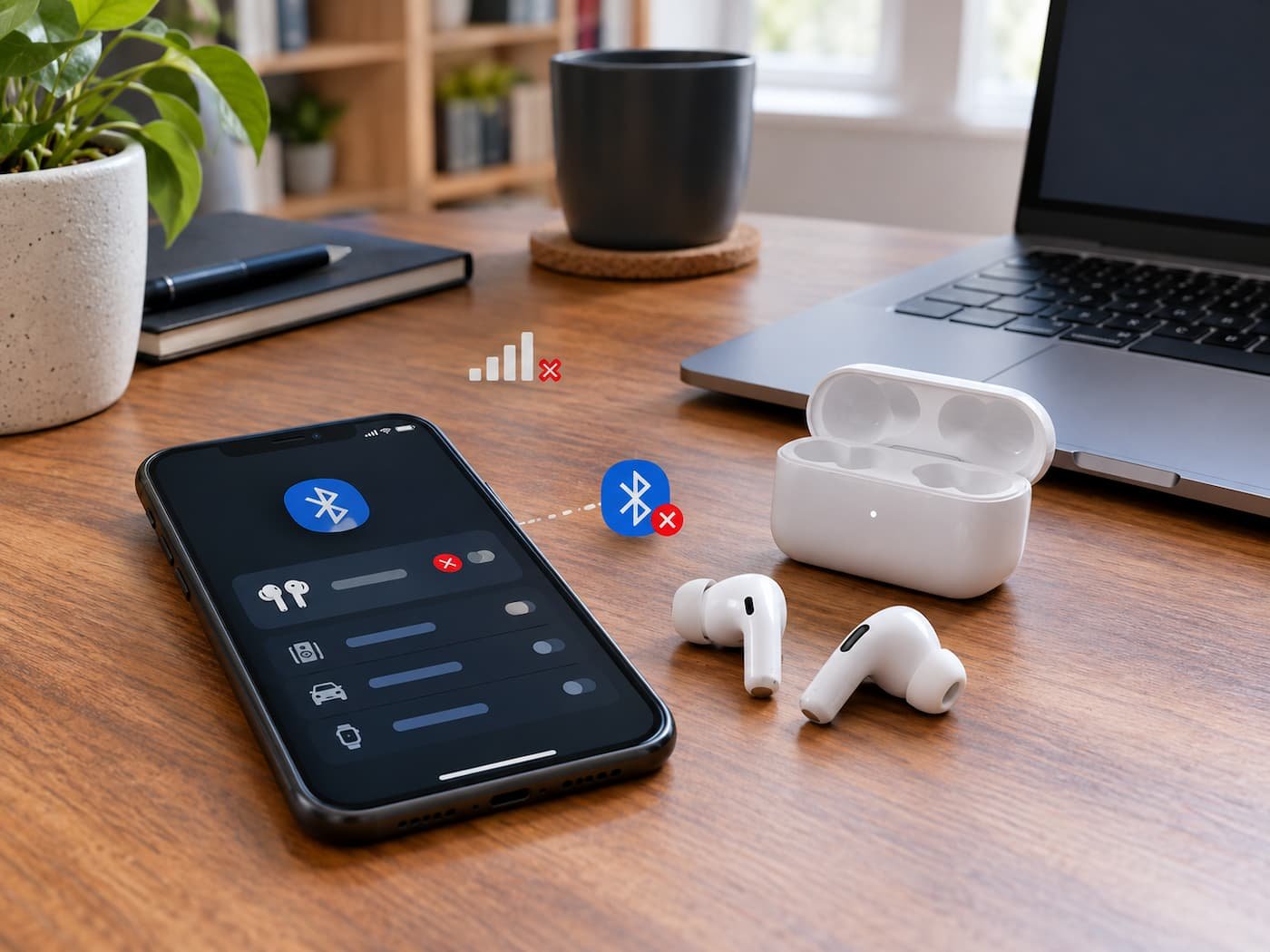
Bluetooth disconnections are often blamed on distance. That is reasonable when a device becomes unreliable as you move away from the computer or phone, but it does not explain every drop. A Bluetooth connection can fail while two devices are sitting on the same desk, remain stable at a distance that previously caused problems, or disconnect only when a laptop enters battery-saving mode or a second wireless device becomes active.
The useful diagnostic question is therefore not simply “Is the Bluetooth signal strong enough?” It is “What changes when the connection drops?” The answer may point toward radio interference, power management, a driver or firmware problem, device-side behavior, profile or compatibility limitations, or a fault in one of the two Bluetooth radios.
Bluetooth itself is designed to operate across changing radio conditions. Bluetooth SIG documentation explains that Bluetooth uses multiple radio channels and mechanisms intended to improve reliability in environments where collisions and interference are possible. At the same time, Bluetooth shares unlicensed spectrum with technologies such as Wi-Fi, so coexistence problems remain possible.
The Pattern of the Disconnect Matters More Than the Distance
Start by observing when the connection fails. A random disconnect that occurs only after the computer has been idle is different from one that occurs whenever audio begins playing. A mouse that disconnects when a USB 3 device is plugged in suggests a different investigation from headphones that disconnect only when the phone switches between apps.
The timing gives you a way to divide the problem into areas before changing settings.
| What Happens | What It Suggests | What To Investigate |
|---|---|---|
| Connection fails as you move away | Radio conditions or physical obstruction | Distance, orientation, obstacles |
| Disconnects even at close range | Interference, power, driver, firmware, hardware | Radio environment and host |
| Fails only on one computer/phone | Host-side problem | OS, driver, Bluetooth stack |
| Same accessory fails with several hosts | Accessory-side problem | Battery, firmware, hardware |
| Multiple Bluetooth devices fail together | Host Bluetooth subsystem | Adapter, driver, power management |
| Drops when Wi-Fi activity increases | Wireless coexistence | 2.4 GHz congestion |
| Happens after sleep or idle periods | Power management or device wake behavior | OS and adapter power settings |
| Audio drops but device remains connected | Profile/audio path rather than Bluetooth link | Audio profile, application, driver |
| Only one application is affected | Application-specific behavior | App settings and permissions |
This comparison is more valuable than repeatedly removing and re-pairing the same device. Re-pairing can repair corrupted pairing information, but it does not address an unstable radio environment, an outdated driver, or a device that is deliberately entering a low-power state.
Separate the Bluetooth Link From the Application
A Bluetooth connection can remain established while a particular function stops working. This distinction is especially important with headphones, speakers, keyboards, mice, game controllers, and other devices that expose different Bluetooth services or profiles.
For example, a headset can appear connected while audio stops, becomes distorted, or changes behavior when an application opens the microphone. That does not necessarily mean the Bluetooth radio disconnected. Windows documents separate troubleshooting paths for Bluetooth devices that connect but experience audio problems, including situations involving settings, drivers, and compatibility.
The same principle applies outside audio. If a Bluetooth mouse freezes but the operating system still reports it as connected, investigate whether input is actually reaching the host rather than assuming the radio link has disappeared. If the device vanishes completely from the operating system, the investigation moves closer to the Bluetooth adapter, device firmware, or radio connection.
This distinction prevents an application problem from being treated as a radio problem.
Test the Two Ends Independently
Bluetooth is a relationship between two devices. There is a host radio—such as the Bluetooth adapter in a laptop or smartphone—and an accessory radio in the mouse, headphones, controller, keyboard, or other peripheral.
That means a useful diagnostic test is to change one end of the connection. If the same headphones repeatedly disconnect from one laptop but remain stable with another phone, the laptop becomes the more relevant place to investigate. Conversely, if the headphones disconnect from several unrelated hosts, the accessory itself becomes a stronger suspect.
Battery level is particularly important on the accessory side. Microsoft notes that some Bluetooth devices may have difficulty entering pairing mode or maintaining a connection when their battery is low. Android’s current troubleshooting guidance likewise starts with basic device state, pairing, and restarting the devices involved.
A useful test therefore involves a fully charged accessory and, where practical, a second host. If the problem follows the accessory, host-side driver changes are unlikely to be the main solution.
Signal Strength Is Only One Part of the Radio Problem
Bluetooth operates in the 2.4 GHz ISM band, which many Wi-Fi networks and other radio devices also use. Bluetooth SIG documentation describes coexistence as a potential challenge when multiple technologies operate in the same band.
This explains why a Bluetooth device can have apparently good range while still behaving badly. The issue may be competing transmissions, packet collisions, reflections, shielding, or the physical arrangement of the antennas, rather than insufficient signal power.
The effect can also depend on what the computer is doing. A laptop may behave normally while a Bluetooth mouse is idle but become unreliable during heavy 2.4 GHz Wi-Fi activity. This observation does not prove that Wi-Fi is responsible, but it is a useful correlation worth testing.
Bluetooth SIG and the Wi-Fi Alliance announced joint work in June 2026, focused on coexistence between Bluetooth and Wi-Fi, including methodologies for evaluating coexistence in increasingly dense wireless environments.
A practical diagnostic experiment is to change the wireless environment rather than simply moving the Bluetooth device closer. If your router offers both 2.4 GHz and 5 GHz or 6 GHz Wi-Fi, temporarily using a higher-frequency Wi-Fi band for a test can help determine whether heavy 2.4 GHz activity is related to the Bluetooth instability. This is a diagnostic comparison, not a universal requirement to disable 2.4 GHz Wi-Fi.
USB 3 Devices Can Be Relevant on Desktop PCs
A less obvious source of trouble is the physical location of a Bluetooth adapter.
Microsoft specifically warns that an unresponsive or sluggish Bluetooth device can sometimes be affected when it is positioned too close to another USB device connected to a USB 3.0 port.
This is particularly relevant for desktop PCs using small USB Bluetooth adapters. The adapter may be physically close to USB ports, hubs, external drives, or cables even though the Bluetooth accessory itself is nearby.
If a USB Bluetooth adapter behaves poorly, changing its physical position can therefore be a more informative test than changing Windows networking settings. The objective is to alter the radio environment while keeping the operating system and accessory unchanged.
If the problem disappears after physically separating the Bluetooth adapter from a nearby USB 3 device, that provides substantially stronger evidence of local interference than simply observing that moving the headphones closer happened to help once.
Battery Saving Can Look Like a Random Disconnect
Modern computers deliberately reduce power consumption when they are idle or operating on battery. Bluetooth hardware can participate in those power-management decisions.
This can create a particularly recognizable pattern: the device works normally while actively being used, then disconnects after the computer has been idle, enters a lower-power state, or resumes from sleep.
Microsoft’s current Windows guidance specifically identifies power-saving settings as a possible cause of repeated Bluetooth disconnections. It recommends checking Battery Saver/Energy Saver behavior and, where applicable, the Bluetooth adapter’s power-management settings.
Windows users should therefore record whether the failure correlates with battery operation, sleep, hibernation, or periods of inactivity. If Bluetooth is stable while the computer is plugged in but repeatedly fails during battery use, that pattern is more informative than a generic claim that the signal is weak.
Do not automatically disable every power-saving feature. Power management exists to reduce energy consumption, and changing it can have consequences for battery life. The better approach is to change the relevant setting temporarily as a controlled test and observe whether the symptom changes.
Drivers and Firmware Become More Likely When the Problem Is Host-Specific
Bluetooth hardware depends on software supplied by the operating system and, in many systems, the computer manufacturer or adapter manufacturer. A driver problem can affect pairing, stability, power management, device discovery, and recovery after sleep.
Microsoft’s current Windows documentation identifies outdated or incompatible Bluetooth drivers as a common source of Bluetooth problems and recommends checking Windows Update and, where necessary, the PC manufacturer’s driver packages.
The manufacturer-specific driver matters because Bluetooth functionality can depend on the particular wireless chipset and laptop design. Installing a random driver package simply because it contains the word “Bluetooth” is not a good diagnostic method.
A recent operating-system update can also change the timing or behavior of a driver without physically damaging the Bluetooth hardware. If the problem began immediately after a documented system or driver change, record that timing. It gives support engineers a useful starting point and helps distinguish a newly introduced software issue from a long-standing hardware problem.
Windows Has Several Layers Worth Checking
On Windows 11, Microsoft currently provides a Bluetooth troubleshooter through the Get Help application, while Bluetooth settings are located under Settings → Bluetooth & devices. Microsoft also documents restarting the Bluetooth Support Service and checking adapter power-management settings for recurring disconnections.
These options address different layers. Restarting the Bluetooth service affects the operating-system service layer; changing an adapter’s power-management behavior affects how Windows manages the hardware; updating the driver changes the software that communicates with the Bluetooth adapter.
That distinction matters when diagnosing the result. If restarting the Bluetooth service immediately restores a connection but the device disconnects again after sleep, the evidence points toward a recurring system-state or power-management issue rather than a simple pairing failure.
Windows 10 should be treated separately from current Windows 11 guidance. Microsoft ended support for Windows 10 on October 14, 2025, so in September 2026 it no longer receives Microsoft’s normal free Windows Update software updates and security fixes. A Bluetooth problem on an unsupported Windows installation therefore needs to be considered in the context of the operating system’s support status as well as the adapter itself.
Android Requires a Different Diagnostic Approach
Android does not expose the same driver and adapter controls that Windows does. The exact Bluetooth settings also vary by manufacturer because Android device makers customize the system interface.
Google’s current Android troubleshooting guidance starts with checking that devices are paired and connected, toggling Bluetooth, restarting the devices, and then following troubleshooting paths specific to the type of problem. Google also notes that users of customized Android versions may need to consult their device manufacturer when the standard Android instructions do not apply.
That means a Windows-specific procedure such as changing Device Manager power-management options cannot simply be transferred to an Android phone. If a Bluetooth accessory works normally with one Android phone but repeatedly disconnects from another, compare the phone models, Android versions, accessory firmware, and power-management behavior instead of assuming the accessory is defective.
Pairing Problems and Connection Problems Are Different
Repeatedly asking a device to pair is not necessarily useful if the problem occurs after a successful pairing.
Pairing establishes a relationship between two Bluetooth devices and stores information that allows them to recognize each other. A device that pairs successfully but later disconnects has already demonstrated that at least part of the discovery and authentication process works.
Microsoft distinguishes between devices that cannot connect and those that repeatedly disconnect after connecting. Its Windows documentation identifies different potential causes and troubleshooting paths for these situations.
If removing and re-adding the device permanently fixes the problem, corrupted or inconsistent pairing information may have been involved. If the same problem returns minutes later, repeatedly re-pairing is unlikely to be the underlying solution.
Compatibility Can Produce Selective Failures
Bluetooth is not a single application with identical behavior for every device. Accessories can support different Bluetooth features, services, and profiles, while operating systems and hardware platforms can expose different capabilities.
This is especially noticeable with complex accessories such as headsets and controllers. A device may pair successfully but expose limited functionality, behave differently during microphone use, or lose a particular function after an operating-system update.
Windows documentation, for example, specifically calls out compatibility limitations in its troubleshooting material for Bluetooth audio.
When only one feature fails, investigate that feature rather than labeling the entire Bluetooth connection unstable. A controller whose buttons stop responding is not necessarily experiencing the same failure as headphones whose entire Bluetooth link disappears.
The Most Useful Diagnostic Sequence
A good Bluetooth investigation changes one variable at a time.
Start by establishing whether the failure follows the accessory or the host. Test the accessory with another compatible device if available. Then test another Bluetooth accessory with the original host. This creates a simple matrix:
- One accessory fails on several hosts → investigate the accessory.
- Several accessories fail on one host → investigate the host.
- One host and one accessory fail together, while other combinations work → investigate compatibility or their specific configuration.
- All combinations fail in the same physical environment → investigate the radio environment or broader hardware issue.
Next record the timing. Does the failure occur after sleep, during battery operation, under heavy Wi-Fi activity, when a USB 3 device is connected, or only during a particular application or audio mode? A reproducible trigger is much more valuable than an observation that the Bluetooth connection “randomly” drops.
Then change the environment. Move the Bluetooth adapter if it is external, temporarily reduce competing 2.4 GHz activity, charge the accessory fully, and test at close range. Each change should be treated as an experiment. If one change consistently removes the symptom, you have evidence about the cause rather than merely another attempted fix.
When Hardware Becomes the Main Suspect
Hardware should not be the first conclusion simply because software troubleshooting is inconvenient. But repeated testing can eventually make it the most plausible explanation.
Hardware becomes more relevant when the same host repeatedly loses multiple Bluetooth devices, the Bluetooth adapter disappears from the operating system, the problem survives current manufacturer drivers and firmware, or the behavior persists across different operating-system states. Microsoft notes that when Bluetooth disappears from Windows, hardware, drivers, firmware, or manufacturer-specific issues can be involved.
The reverse pattern matters too. If only one accessory disconnects across several unrelated hosts while other Bluetooth devices remain stable, replacing the computer’s Bluetooth adapter is unlikely to address the underlying problem.
The goal is not to prove that a component is defective from one symptom. It is to eliminate alternative explanations until the remaining possibilities are narrow enough to justify hardware service or replacement.
What To Record Before Escalating
If Bluetooth continues disconnecting after controlled testing, record the conditions surrounding the failure rather than simply reporting “Bluetooth keeps disconnecting.”
Useful information includes:
- Host device model and operating-system version
- Bluetooth adapter or chipset, if known
- Accessory model and firmware version, if available
- Whether the accessory fails with another host
- Whether another accessory fails with the same host
- Approximate distance and physical obstacles
- Whether the host is on battery or external power
- Whether the problem follows sleep or idle periods
- Whether heavy 2.4 GHz Wi-Fi activity changes the behavior
- Whether nearby USB 3 devices affect the problem
- Whether the failure affects the whole connection or only one function
This turns a vague intermittent complaint into a reproducible technical problem.
Frequently Asked Questions
Can Bluetooth disconnect even when the device is very close?
Yes. Short distance reduces one possible cause—weak received signal—but does not eliminate interference, power management, driver problems, firmware issues, hardware faults, or compatibility problems. Bluetooth is designed to operate in changing radio environments, but coexistence with other 2.4 GHz technologies can still create problems.
Why does Bluetooth work until my laptop goes to sleep?
The timing suggests that power management or the process of restoring the Bluetooth subsystem after sleep may be relevant. On Windows, Microsoft specifically identifies power-saving behavior and Bluetooth adapter power management as possible contributors to repeated disconnections.
Can Wi-Fi interfere with Bluetooth?
It can. Bluetooth and 2.4 GHz Wi-Fi operate in overlapping unlicensed spectrum, creating potential coexistence challenges. The Bluetooth SIG documents coexistence as an engineering consideration, and Bluetooth SIG and Wi-Fi Alliance are continuing joint work on coexistence as wireless deployments become denser.
Why does only one Bluetooth accessory keep disconnecting?
If other Bluetooth devices remain stable on the same host, the accessory’s battery, firmware, hardware, compatibility, or particular Bluetooth profile becomes more relevant. Testing the accessory with another compatible host is one of the clearest ways to separate an accessory-specific problem from a host-wide Bluetooth problem.
Should I keep removing and re-pairing the device?
Only if the evidence points toward a pairing-state problem. If the device pairs successfully and then repeatedly disconnects, re-pairing may temporarily recreate the same conditions without addressing interference, power management, driver problems, firmware, or hardware. The timing and pattern of the failure provide more useful diagnostic information than repeatedly performing the same pairing procedure.