
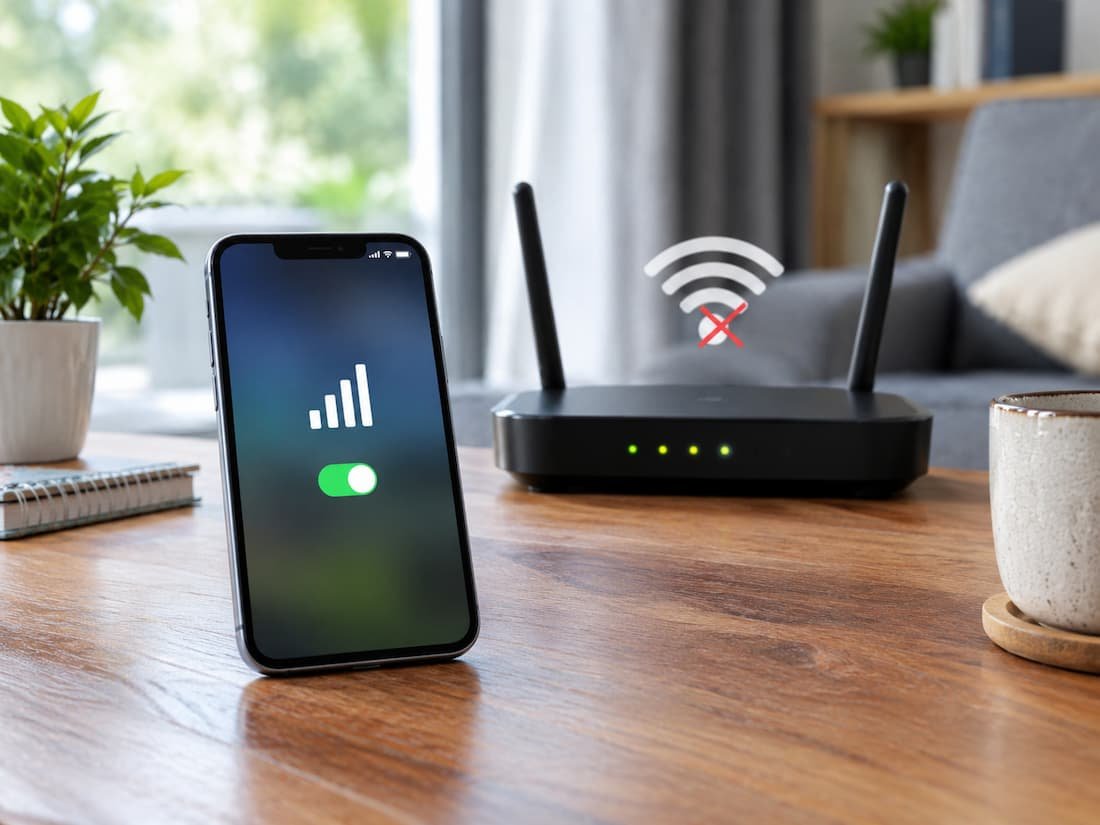
When mobile data works but Wi-Fi does not, it is tempting to treat the problem as a simple Wi-Fi failure. That conclusion is too broad. A phone or computer can successfully associate with a wireless network while failing to obtain a usable IP configuration, reach the router but not the wider internet, resolve domain names, pass traffic through a VPN or proxy, or communicate with one particular service. Modern operating systems themselves distinguish between a Wi-Fi connection and actual internet access. Windows, for example, can show a Wi-Fi connection while separately reporting that internet access is unavailable.
The useful fact here is that mobile data provides a comparison path. If the same device can load the same websites or applications over cellular data, the application and remote service are less likely to be the primary problem. That does not prove the Wi-Fi network is responsible, because the cellular and Wi-Fi paths can differ in DNS, IPv4/IPv6 behavior, routing, filtering, authentication, and VPN handling. The goal is therefore not to “fix Wi-Fi” immediately. It is to find the first layer where the Wi-Fi path stops working.
Start by Comparing the Same Device and the Same Service
Use the comparison carefully. Open a website or application that normally works over mobile data, switch to Wi-Fi without changing anything else, and observe exactly what changes. If every internet service fails on Wi-Fi, the investigation should begin with the device’s Wi-Fi connection, local network configuration, router, or upstream internet connection. If only one application fails, the problem may be application-specific, DNS-related, proxy-related, or caused by the way that service handles the Wi-Fi connection.
The next comparison is even more valuable: connect another device to the same Wi-Fi network. If a laptop, tablet, or another phone also cannot reach the internet, changing settings on the original device is unlikely to solve the underlying problem. Microsoft similarly recommends testing the same wireless network with another device because this helps separate a device-specific fault from a network-side fault.
The reverse case is equally informative. If other devices work normally on the same Wi-Fi network while one device does not, concentrate on that device. Windows’ wireless troubleshooting guidance specifically recommends checking the IP configuration, DNS, proxy, VPN, adapter, driver, and other client-side components when Wi-Fi association succeeds but network access fails.
| Symptom | What It Suggests | What to Check | Likely Area |
|---|---|---|---|
| Wi-Fi cannot connect at all | Authentication, radio, compatibility, or adapter problem | Other networks, password, Wi-Fi band, adapter | Device or Wi-Fi infrastructure |
| Wi-Fi connects but no websites work | IP, routing, DNS, proxy, or upstream problem | IP address, gateway, DNS, another device | Device, router, DNS, ISP |
| Only one website fails | Service, DNS, browser, or remote-server issue | Other sites, another browser, DNS result | Application, DNS, remote service |
| All devices fail on Wi-Fi | Shared infrastructure problem | Router, gateway, WAN connection | Router or ISP |
| Other Wi-Fi devices work, one device fails | Client-specific configuration or hardware | IP, DNS, VPN, proxy, driver | Device or OS |
| Websites work but one app fails | Application or app-specific networking | App settings, VPN, permissions, service status | Application |
| Wi-Fi works near router but not farther away | Radio conditions or interference | Signal, band, location, channel | Wireless infrastructure |
Determine Whether the Device Has a Local Network Connection
A Wi-Fi connection has several stages. First, the device associates with the access point. Then it needs usable network configuration, normally including an IP address, subnet information, default gateway, and DNS servers. After that, packets must travel through the gateway toward the internet, domain names must resolve, and the destination service must respond.
This distinction explains why the Wi-Fi icon alone is not enough. A device can be associated with the router even when DHCP has failed or the router cannot provide a functioning path to the ISP. On Windows, Microsoft’s diagnostic guidance recommends checking the assigned IP address, default gateway, and DNS servers. A self-assigned address in the 169.254.x.x range is a particularly useful clue because it indicates that Windows did not obtain an address from the expected DHCP service.
On Windows, ipconfig /all provides the relevant information. The important question is not simply whether an IP address appears, but whether the address, subnet mask, default gateway, and DNS servers make sense for that network. Microsoft recommends checking these values when diagnosing DNS and general TCP/IP problems.
macOS provides similar network information through its network settings, while Android and iOS expose Wi-Fi-specific configuration through their network settings. The exact menu names vary by operating-system version and device manufacturer, so instructions written for one platform should not be assumed to apply to another.
Test the Router Before Testing the Internet
Once the device has a valid local configuration, the next question is whether it can communicate with the local gateway. The gateway is commonly the router’s private IP address. Testing this boundary is useful because it separates the wireless/local-network portion from the internet connection beyond the router.
On Windows, Microsoft documents using ipconfig to identify the default gateway and then pinging that address. A successful response demonstrates that the computer can communicate with the router at the IP layer; it does not demonstrate that the router has working internet access. If the gateway cannot be reached, the investigation should remain focused on Wi-Fi association, local addressing, adapter behavior, interference, router configuration, or other local-network conditions.
A failed ping should not automatically be interpreted as proof that the network is broken. Ping uses ICMP, and firewalls or network devices can block ICMP while still allowing normal TCP or UDP traffic. Microsoft explicitly notes this limitation when describing DNS-server ping tests. The result is therefore evidence, not a verdict.
If the gateway responds but internet services do not, the fault boundary has moved beyond the basic Wi-Fi radio connection. Possible causes now include the router’s WAN connection, ISP service, DNS, routing, filtering, VPN or proxy configuration, or an upstream service.
DNS Can Make a Working Internet Connection Look Broken
DNS is frequently blamed too early, but it is easy to distinguish from some other failures. DNS translates hostnames such as a website’s domain into IP addresses. If the device has a valid local address, can reach its gateway, and can communicate with the network but cannot resolve ordinary domain names, DNS becomes a stronger suspect.
Windows provides DNS information through ipconfig /all, and Microsoft recommends verifying that the configured DNS servers are appropriate for the network. Microsoft also recommends testing connectivity to a configured DNS server when investigating DNS-client problems, while noting that ICMP filtering can make a ping result inconclusive.
Android has another layer worth knowing about: Private DNS. Current Android documentation states that Private DNS is used by default on networks that support it and provides options for Automatic, Off, or a specified Private DNS provider hostname. Private DNS protects DNS questions and answers, but it does not protect all other traffic. This means a device can have ordinary Wi-Fi connectivity while a manually configured DNS provider, DNS filtering service, or related configuration creates a name-resolution problem.
For a domain-specific investigation, TechTalksX’s DNS Record Explorer can help explain what DNS records a domain publishes and whether the behavior being observed is consistent with the domain’s DNS configuration. It should be treated as an explanatory diagnostic tool, not as proof that the user’s local DNS resolver is functioning correctly.
When Only Certain Sites or Apps Fail
If Google, several ordinary websites, and other applications work over Wi-Fi but one service does not, resetting the router is unlikely to be the logical first move. The problem may exist above the basic network layer.
A browser can introduce its own behavior through cached data, extensions, proxy configuration, secure DNS features, or application-specific policies. An application can also use different endpoints, protocols, certificate requirements, or network-security policies from a browser. If the same service works in one browser but not another, that is strong evidence that the Wi-Fi radio itself is not the main problem.
HTTP status codes can provide another useful boundary. A server returning an HTTP response is fundamentally different from a connection that never reaches the server. A 404, 403, or 500 response means the request reached an HTTP-speaking endpoint and received a response; it does not represent the same failure as a DNS lookup timeout or an inability to establish a connection. TechTalksX’s HTTP Status Code Explorer can help interpret these responses when the browser or application exposes an HTTP status.
This distinction matters because changing DNS or resetting Wi-Fi cannot repair a remote server that is returning an error. Likewise, restarting a browser cannot repair a router that has lost its WAN connection.
Check VPNs, Proxies, and Security Software Before Resetting Anything
A device can have perfectly normal Wi-Fi connectivity and still be unable to reach websites because traffic is being redirected or filtered locally. VPN software, enterprise security tools, proxy settings, DNS filtering applications, and firewall products can alter the path that traffic takes.
Apple specifically identifies VPN and third-party security software as possible causes of connectivity problems, including situations where a device cannot access the internet or communicate with other devices on the local network. Windows also supports proxy configuration for Wi-Fi connections, including automatic discovery and explicit proxy servers or configuration scripts.
This is particularly important when mobile data works but Wi-Fi fails. Some security or VPN configurations can behave differently depending on the underlying network. Android also supports always-on VPN behavior and configurations that can block connections when the VPN is unavailable.
The diagnostic approach is to identify whether the failure changes when the relevant networking layer is temporarily bypassed, provided the software is not managed by an employer, school, or other administrator. Do not permanently disable security software simply because it is present. The purpose of a controlled test is to determine whether that layer participates in the failure.
When the Router Is the Actual Problem
If several devices fail on the same Wi-Fi network while mobile data works independently, the router or upstream connection becomes much more likely. At this point, repeatedly changing settings on each phone or computer can create additional variables without addressing the shared failure.
Look at whether devices can communicate with the router, whether they receive valid addresses, and whether the router itself reports a functioning WAN connection. A router can continue broadcasting a perfectly visible Wi-Fi network even after its connection to the ISP has failed. From the client’s perspective, the wireless network still exists, but the path beyond the router does not.
Radio conditions are a different category. A device may connect successfully but suffer intermittent packet loss because of distance, physical obstacles, interference, or limitations associated with a particular frequency band. Windows documentation notes that consumer routers commonly provide 2.4 GHz and 5 GHz connectivity and recommends trying another available band when appropriate.
The Wi-Fi Standard Explorer is useful when investigating whether a device and router are using compatible Wi-Fi generations and capabilities. A compatibility problem can be subtle: a device may see a network but fail during association, authentication, or sustained communication rather than simply reporting that Wi-Fi is unavailable.
Windows, macOS, Android, and iPhone Do Not Diagnose the Same Way
On Windows, the built-in Get Help network troubleshooter, network settings, ipconfig, and Wi-Fi diagnostics provide several layers of information. Microsoft also documents netsh wlan as a command family for managing and troubleshooting wireless networking. More invasive operations, such as Network Reset, should be reserved for cases where less disruptive diagnosis has not identified the problem because resetting removes network adapters and restores networking settings to defaults.
On macOS, Apple provides Wi-Fi Recommendations and Wireless Diagnostics. Wireless Diagnostics can be opened from the Wi-Fi menu while holding the Option key, giving users a way to investigate wireless conditions rather than relying only on the connection icon. Apple also recommends considering DHCP renewal, VPN or security software, router firmware, and testing another network.
Android exposes Wi-Fi, VPN, proxy, and Private DNS settings, although exact menu locations can vary by Android version and manufacturer. Google’s current guidance specifically recommends switching between Wi-Fi and mobile data as an early comparison because it helps establish whether the problem is associated with the wireless path.
On iPhone, individual Wi-Fi networks have their own settings for options such as Private Wi-Fi Address, Limit IP Address Tracking, DNS, and HTTP Proxy. Apple’s Private Wi-Fi Address feature uses a different MAC address for each Wi-Fi network, which can matter on networks that use MAC-based authorization or access controls. If a managed network identifies devices by MAC address, this can become a compatibility or authorization issue rather than an internet-service problem.
Avoid Changing Five Things at Once
The most common troubleshooting mistake is destroying the evidence. Someone changes DNS, forgets the Wi-Fi network, reboots the router, disables a VPN, resets the adapter, and updates the driver before checking whether the original problem has changed. Even if the connection starts working, the actual cause remains unknown.
A better approach is to change one relevant variable after establishing the failure boundary. If another device fails on the same network, investigate the shared infrastructure. If only one device fails, inspect its address, gateway, DNS, VPN, proxy, and adapter. If only one application fails, compare browsers or applications before modifying the whole network. When DNS resolution fails but IP connectivity is still functional, investigate DNS instead of replacing the entire networking configuration.
This method also makes escalation more useful. If an ISP or network administrator needs to investigate the problem, information such as the affected device, Wi-Fi network, whether other devices are affected, whether the router is reachable, whether an IP address is assigned, whether DNS resolution works, and whether another network works provides far more diagnostic value than simply reporting that “Wi-Fi is broken.”
When the Problem Is Probably Outside Your Device
There is a point where further local changes stop being productive. If multiple devices on the same Wi-Fi network fail, the router has a valid local network but cannot establish upstream connectivity, and the same services work through mobile data, the evidence increasingly points toward the router’s WAN connection, ISP service, or another shared upstream dependency.
The same principle applies to remote services. If multiple networks and devices can reproduce an application’s failure, while unrelated websites remain accessible, the remote application or its supporting infrastructure deserves investigation. A service can experience DNS, routing, CDN, authentication, API, or server-side problems without affecting the rest of the internet.
The important distinction is that “the Wi-Fi is connected” and “the internet service works” describe different layers. A troubleshooting process becomes much faster once those layers are tested separately instead of treating the Wi-Fi icon as a complete diagnosis.
Frequently Asked Questions
Why does mobile data still work when the Wi-Fi icon shows that it is connected?
This is because Wi-Fi association only establishes a connection between the device and the wireless network. Internet access still depends on IP configuration, routing, DNS, the router’s WAN connection, and sometimes VPN or proxy software. A device can therefore be connected to Wi-Fi while lacking a functioning route to the internet.
Should I change my DNS settings now?
No. DNS is only one possible failure point. If the device cannot communicate with its router or has no valid IP configuration, changing DNS will not repair those lower-level problems. DNS becomes a stronger suspect when local connectivity works but domain names fail to resolve.
Why does Wi-Fi work for browsing but not for one app?
The application may use different servers, ports, DNS behavior, VPN rules, certificates, or network-security mechanisms from a browser. Compare the same service through another network and, where appropriate, another client. If ordinary websites work while only one application fails, investigate the application path before resetting the entire network.
Can a router broadcast Wi-Fi even when the internet is down?
Yes. The wireless access point and the router’s connection to the ISP are separate functions. Devices can continue joining the local wireless network even when the router cannot reach the wider internet.
When should I reset network settings?
Only after less disruptive diagnosis has narrowed the problem or exhausted the relevant configuration checks. A network reset can remove adapters and networking settings and may require VPN software, virtual networking components, or other network configurations to be set up again.