
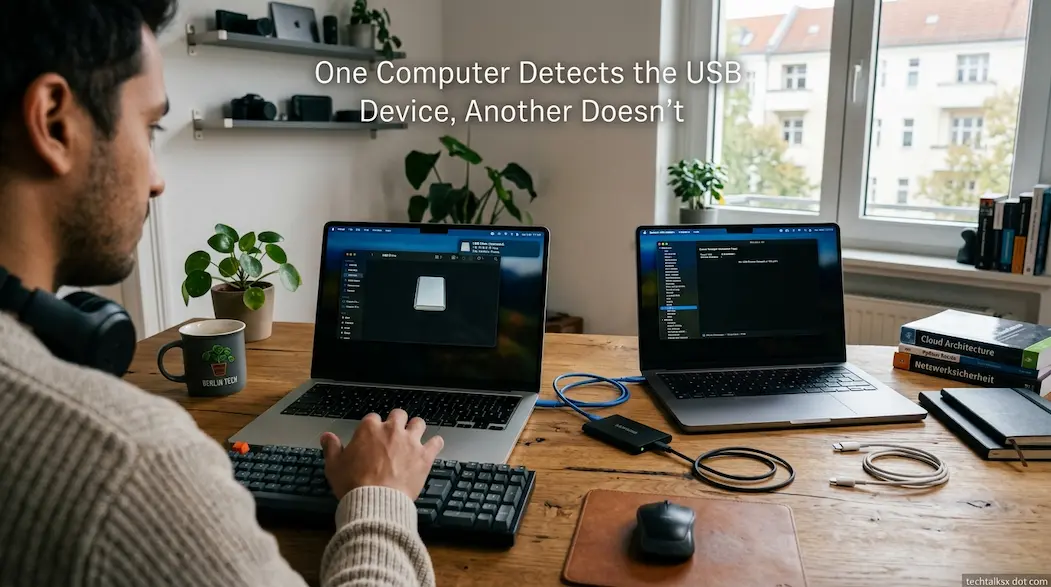
When a USB device works normally on one computer but appears completely undetected on another, the device itself is not automatically the problem. The fact that it works elsewhere is useful evidence, but it does not prove that every part of the device is compatible with the second computer.
USB detection involves several layers. The physical port must provide power and establish an electrical connection; the USB host controller must communicate with the device; the operating system must enumerate it; and an appropriate driver or class driver must make the device available to applications. Storage devices introduce additional layers, including partitions, file systems, and drive-letter assignment. A failure at any one of these stages can make the device appear to be “not working.”
The most effective diagnosis is therefore to determine how far the second computer gets in recognizing the device. A device that appears in Windows Device Manager but not File Explorer has a completely unique problem from one that does not appear in the USB device tree at all.
Start By Defining What “Doesn’t Detect” Means
Before changing drivers or formatting anything, determine what the computer actually does when the device is connected.
There are several possible outcomes:
- The computer produces a USB connection sound or notification, but the device does not appear where expected.
- The device appears in Device Manager with an error or warning icon.
- A USB storage device appears in Disk Management but has no drive letter.
- The device appears as an unknown USB device.
- The device briefly appears and then disconnects.
- Nothing changes at all when the device is connected.
- The device receives power but cannot establish communication.
These symptoms represent different layers of the USB system. For example, a storage device missing from File Explorer does not necessarily mean that USB detection failed. Windows may have successfully detected the hardware but failed to mount its volume or assign it a drive letter.
That distinction is the foundation of the diagnosis.
The Most Useful Comparison: Same Device, Different Computer
Because the USB device works on another computer, use that working computer as a reference rather than assuming the second computer has the same configuration.
Check what type of device it is and how the working computer identifies it. A USB flash drive, external SSD, webcam, printer, audio interface, keyboard, and specialized industrial device can all use USB while depending on very different operating-system support.
Also check whether the device requires:
- A manufacturer-specific driver
- Companion software
- External power
- A particular USB mode
- A specific operating system
- A security or authentication component
A simple USB storage device generally relies heavily on standard operating-system support, while specialized hardware may depend on vendor software.
The comparison becomes especially useful if the two computers use different operating systems or substantially different versions. A device can function on one system because its required driver or USB class support is present while the other system lacks it.
Identify Whether The USB Connection Is Being Established
The first technical question is whether the second computer recognizes the USB hardware at all.
On Windows, connect the device and observe Device Manager. Expand categories such as Universal Serial Bus controllers, Disk drives, Portable Devices, or the category appropriate to the device. A newly appearing device, even if it is labeled as unknown, indicates that Windows has detected something at the USB level.
If the device appears with an error icon, inspect its properties and the reported device status. The exact error matters because it can distinguish driver initialization problems from broader enumeration failures.
If absolutely nothing changes in Device Manager when the device is connected, investigate the physical connection, USB port, host controller, power delivery, or firmware before spending time reinstalling application software.
This is a more useful first branch than simply reinstalling the manufacturer’s software.
A USB Device Can Have Power Without Being Detected
USB power and USB communication are related but different.
A device may illuminate an LED or otherwise appear powered while the computer still fails to establish communication with it. Power indicates that electrical power is reaching the device; it does not prove that USB enumeration has completed successfully.
This explains a common misleading symptom: “The drive lights up, so the USB port must be working.”
Not necessarily.
The port could be supplying power while communication is failing because of a damaged data connection, compatibility issue, controller problem, driver problem, or signal-integrity problem.
For the same reason, testing another USB port is useful, but the result needs interpretation. If one port detects the device and another does not, the issue may be localized to the port, its controller path, or the configuration associated with that port.
USB Port Type And Compatibility Matter
USB connectors can look similar while supporting different capabilities.
USB Type-A and USB Type-C describe connector forms, while USB generations and modes describe capabilities. USB 2.0, USB 3.x, USB4, and other USB specifications can differ substantially in signaling and supported features. USB-C also does not guarantee that every port supports every capability associated with the connector.
A device that requires a particular mode may therefore behave differently when connected through different ports or adapters.
The TechTalksX Wi-Fi Standard Explorer is not relevant to USB diagnosis and should not be used as a substitute for USB documentation. For this problem, the important information comes from the computer manufacturer’s specifications, the requirements of the USB device manufacturer, and the USB capabilities of the actual port and adapter being used.
If the device is connected through a hub, dock, or USB-C adapter, remove that variable when possible. Connect the device directly to the computer. A hub introduces another USB controller or connection layer and can have its own power, compatibility, firmware, or bandwidth limitations.
The Hub Or Dock May Be The Real Problem
A USB device working directly on one computer but failing through a dock on another does not establish that the device or computer is defective.
USB hubs negotiate connections between the host and downstream devices. A dock can also incorporate additional controllers for networking, display output, storage, audio, and card readers. Its behavior may depend on drivers and firmware as well as the host computer’s USB-C implementation.
A useful isolation sequence is:
Device → direct USB port
then, if that works:
Device → hub/dock → computer
If direct connection works but the hub connection fails, investigate the hub or dock rather than modifying the device’s data.
This step is particularly important for USB-C systems because the connector itself does not tell you everything about the capabilities implemented by the host port, cable, dock, or peripheral.
If Windows Detects It But File Explorer Does Not
For USB storage, this is one of the most important distinctions.
Windows can successfully identify an external storage device while the storage volume remains unavailable in File Explorer. In that situation, USB communication may already be working.
Open Disk Management and look for the external device.
Several outcomes are possible. The disk may have a healthy volume but no drive letter. It may contain a partition that Windows does not mount automatically. It may be offline, uninitialized, or using a file system Windows does not natively mount.
Do not immediately initialize or format a disk simply because Windows offers the option. Initialization and formatting can alter or destroy data, so they should only be considered after determining whether the disk contains data that needs to be preserved.
If the device contains important files, the safest diagnostic approach is to avoid destructive disk operations until the storage layout and file-system situation are understood.
File-System Compatibility Can Look Like USB Failure
Suppose an external SSD works on a Mac but does not appear normally in Windows. That does not necessarily mean Windows cannot communicate with the USB enclosure.
The storage device may be formatted with a file system that the second operating system does not natively support for normal read/write access. In that situation, the USB hardware can be detected while the volume remains unavailable through the normal file browser.
This distinction is particularly important with removable storage that moves between Windows, macOS, and Linux.
If the disk is visible in the operating system’s storage-management tools but not accessible through the normal file browser, investigate the file system and partition structure before replacing cables or reinstalling USB drivers.
Driver Problems Are More Relevant For Specialized Devices
USB storage, keyboards, mice, and other common USB classes often use operating-system support that requires little or no manufacturer-specific software. Specialized equipment can be different.
A professional audio interface, measurement instrument, security device, older printer, programming adapter, or proprietary controller may require a vendor driver. The device can therefore be physically detected while remaining unusable because its driver cannot initialize.
If the device appears in Device Manager but has a warning icon, examine the driver information and the hardware manufacturer’s current support documentation.
Be careful with generic driver-download websites. A driver should preferably come from the device manufacturer or the computer manufacturer’s official support channel. Installing an unrelated driver package can introduce another compatibility problem rather than solving the original one.
Operating-System Version Can Explain The Difference
The two computers may have different operating-system versions, architectures, security policies, or driver packages.
A device that was designed for an older Windows version may require a newer driver for current Windows releases, while a Linux distribution may provide its own kernel support. macOS may impose different driver and security requirements than Windows.
The fact that a device works on one computer establishes compatibility with that particular software and hardware environment. It does not establish universal compatibility.
Record:
- Operating-system name and version
- Device model and revision
- USB port type
- Whether an adapter or hub is involved
- Manufacturer driver or companion-software version
- Whether the device appears in system hardware diagnostics
- Any reported error code
These details are much more useful than simply reporting that “USB doesn’t work.”
Power Problems Become More Likely With Larger Devices
Some USB devices draw more power than a small keyboard or flash drive.
Portable hard drives, some external SSD enclosures, cameras, audio equipment, and other peripherals can have higher power requirements. A device may behave differently depending on the USB port, hub, dock, cable, or whether the computer is supplying sufficient power.
If the device repeatedly connects and disconnects, spins up and disappears, or behaves differently through a powered hub, power delivery becomes an important branch of the investigation.
A powered hub can be a useful diagnostic comparison, but it should not be treated as proof that the computer’s USB port is defective. The behavior can also involve the cable, device electronics, hub controller, or USB negotiation.
The Cable Is Part Of The USB Connection
For USB-C in particular, the cable can be a significant source of confusion.
USB-C describes the connector, not a single universal set of capabilities. Different USB-C cables can support different data rates, charging capabilities, and alternate modes. A cable that works for charging may not necessarily provide the expected data capability for every device.
If the device works on one computer using a particular cable, test that same known-working cable on the second computer when practical. This removes the cable as a variable.
For USB-A and other connector types, damaged or low-quality cables can also cause intermittent communication, particularly when the device depends on higher-speed signaling.
If changing the cable changes the behavior, do not immediately blame the operating system. The physical connection is now a stronger suspect.
When Security Software Or Policy Gets Involved
Enterprise-managed computers can impose restrictions on removable devices. Organizations may use endpoint-management policies to block USB storage, restrict specific device classes, or prevent data transfer through removable media.
This produces a particularly important distinction: the device may work normally on a personal computer but fail on a managed workstation because the operating environment intentionally restricts it.
If the second computer belongs to an organization, check whether removable-storage policies or endpoint security controls are in place. Do not attempt to bypass organizational security controls simply to make the device work.
A policy-related block is an administrative configuration issue, not necessarily a USB hardware fault.
Linux And macOS Require Different Diagnostic Paths
Windows provides Device Manager and Disk Management as convenient graphical diagnostic points for USB hardware and storage.
On macOS, System Information can show connected USB hardware. If a storage device appears under the USB hardware information but not in Finder, investigate storage detection and mounting separately.
On Linux, the available tools depend on the distribution and desktop environment. Hardware and kernel messages can provide more detailed evidence about USB enumeration, while graphical disk-management utilities can help distinguish a detected storage device from a mounted file system.
The terminology and exact interfaces differ, but the underlying diagnostic model remains the same:
Physical connection → USB enumeration → device/driver recognition → storage or application-level access.
Find the first layer that fails.
A Useful Decision Tree
If nothing happens when the device is connected, test another known-good port and cable, remove hubs or adapters, and determine whether the operating system registers any new USB hardware.
If the operating system sees an unknown device, investigate enumeration errors, drivers, compatibility, and the device manufacturer’s support information.
If the device appears correctly in hardware management but not in the application, investigate the application, driver, permissions, or device-specific software.
If a storage device appears in Disk Management but not File Explorer, investigate drive letters, partitions, file-system compatibility, and mount state.
If the device works directly but not through a hub, investigate the hub, dock, cable, power, and firmware.
If the device works on another operating system but not this one, investigate operating-system support, drivers, file-system compatibility, and security policy.
If the device disconnects repeatedly, investigate cable integrity, power delivery, port condition, hub behavior, drivers, and hardware faults.
This sequence avoids treating every failure as a driver problem.
What The Working Computer Can Tell You
The computer where the USB device works provides useful reference information.
For a storage device, compare how the working operating system identifies the disk, its capacity, partition structure, and file system. For specialized hardware, determine its exact model, driver, and companion software version.
The capacity information can also prevent another common misunderstanding. A drive marketed as a particular decimal capacity may appear smaller when the operating system reports capacity using different conventions or after accounting for formatting and system structures. The TechTalksX Data Storage Unit Converter can help convert between storage units when comparing manufacturer specifications with operating-system figures.
The converter is useful for interpreting capacity differences; it does not determine whether the USB device is compatible with a particular computer.
When The Device Itself Becomes The Suspect
A device working on one computer makes a completely dead device less likely, but it does not eliminate the possibility of a marginal hardware fault.
For example, a device may work reliably on one USB controller but fail on another because of a signal-integrity problem, power difference, controller compatibility issue, or marginal component.
If the device increasingly fails across different computers, ports, and cables, the evidence shifts toward the device or its cable. If it remains completely reliable everywhere except one computer, the evidence shifts toward that computer’s USB environment.
The pattern across multiple hosts is therefore more valuable than any individual successful or unsuccessful connection.
FAQ
Why does Windows make a sound when I connect the device but not show it in File Explorer?
The sound indicates that Windows detected some form of device activity, but it does not mean that the storage volume or application interface is ready. Check Device Manager and, for storage devices, Disk Management to determine whether the device was detected but not mounted.
Can a USB port provide power but fail to detect a device?
Yes. Power delivery does not prove that USB data communication and enumeration are working. A damaged data connection, incompatible hardware, controller issue, driver problem, or signal-quality problem can allow a device to receive power without becoming usable.
Why does a USB drive work on macOS but not Windows?
The hardware may be fine while the storage volume uses a file system that Windows does not natively support in the same way. Check whether Windows detects the physical disk and examine its partition and file-system information before assuming that the USB connection has failed.
Should I format a USB drive that another computer cannot open?
Not before determining why it cannot be opened. Formatting can erase existing data. If the drive contains important files, identify whether the disk, partition, and file system are being detected first.
Why does a USB device work directly but fail through my dock?
The dock introduces another controller, cable, power path, and potentially firmware or driver dependencies. Test the device directly on the computer. If direct connection works consistently, investigate the dock rather than changing the device’s data.