A new phone or computer can feel strangely familiar within minutes of signing in. Your email appears, contacts return, cloud files appear, apps start downloading, and settings may look surprisingly similar to those on the old device. It can seem as if the device has copied your digital life from one piece of hardware to another. What is actually happening is more complicated: the new device establishes access to accounts and services, while backups, sync systems, app data, and local storage each determine what comes across.
That distinction matters because signing in is not the same thing as copying a device. Some information belongs to an online account and can be retrieved from the provider’s servers. Some information is included in a device backup. Some is synchronized continuously between devices. Other information is only on the old hardware and won’t appear just because you used the same email address on the new one. Understanding these different layers makes it much easier to predict what will happen when you replace a phone, upgrade a computer, or move between devices.
Signing In Creates A New Access Point
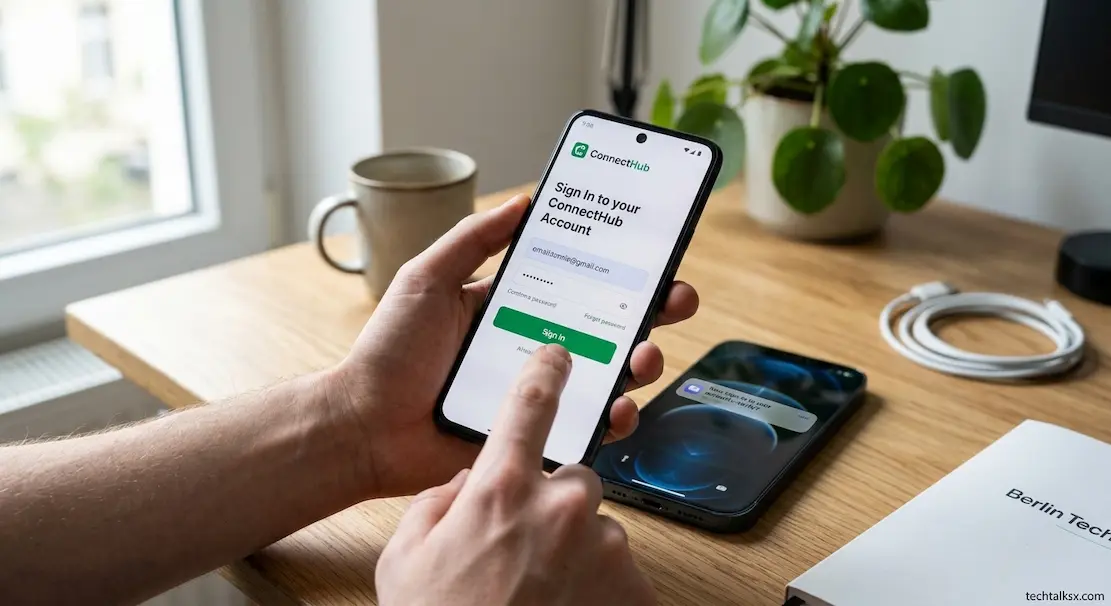
When you sign into an account on a new device, the service generally recognizes the new device or session as another place where the account is being used. Google, for example, allows users to see computers, phones, browsers, applications, and other sessions that have recently accessed an account. Google explains that a separate session can be created when you sign in on a new device, browser, app, or service, so the appearance of a new session is a normal part of using an account across multiple environments. (Google)
This also means that signing into the new device does not necessarily disconnect the old one. Unless the service specifically signs out the previous device or you remove its access yourself, the old hardware may remain associated with the account. That is an important difference from the way people often imagine a device upgrade: the account is not being physically moved from one machine to another. Instead, another device is being given permission to interact with the same account and whatever services that account controls.
Your Account Does Not Contain Everything On Your Old Device
The easiest way to understand a device migration is to separate account data from local data. Information stored by an online service can often be retrieved after you authenticate on the new device, but information that existed only in local storage has no reason to appear there. A photograph stored exclusively on the old phone, a downloaded file outside a synchronized folder, or application information that was never backed up may remain on the old hardware even though the same account is active on the new device.
This is also why available storage can become confusing during a migration. A cloud account may contain hundreds of gigabytes of files while the new device has only a fraction of that capacity. Seeing those files does not necessarily mean that all of them have been downloaded locally. If you need to understand the difference between KB, MB, GB, TB, and other storage measurements while checking how much information you are moving, the TechTalksX Data Storage Unit Converter can be useful.
Cloud Synchronization Makes Some Data Follow You
Cloud synchronization is what makes certain parts of your digital life appear almost instantly on a new device. If contacts, files, photos, browser information, or other data are stored by a service and configured to synchronize, the new device can retrieve that information after you sign in. There is no requirement for the old phone or computer to physically send every item to the new one because the cloud service already holds the synchronized information.
Microsoft’s OneDrive provides a straightforward example. Microsoft explains that files placed in OneDrive can be accessed on a new PC after signing into OneDrive with the same Microsoft account, while synchronized files can also remain available across computers, phones, and other devices. (Microsoft) Android works similarly for certain Google Account data: Google says contacts saved to the Google Account can automatically appear on a new Android device after signing in. (Google)
Backup And Synchronization Are Not The Same
A backup and a synchronization system can both make information available on a new device, but they solve different problems. Synchronization is primarily concerned with keeping information available across locations and reflecting changes between them. A backup is a stored copy intended to help restore information after a device is lost, replaced, damaged, or reset. Treating them as interchangeable can lead to incorrect assumptions about what will happen during a migration.
Android, for example, allows certain content, data, and settings to be backed up to a Google Account and restored to the same or another Android phone, although the exact restoration process depends on the device and Android version. (Google) Microsoft similarly distinguishes between OneDrive files and information that must be transferred or restored separately during a PC migration. Its documentation notes that OneDrive files are handled through OneDrive itself rather than being treated exactly like every other category of Windows transfer. (Microsoft)
The New Device May Restore More Than It Downloads
A modern device can recreate parts of your previous setup without receiving a complete copy of the old machine. During Android setup, for example, Google provides options to copy apps and data from an existing device or restore information from a backup. The process can require the old device’s PIN, pattern, or password as an additional security measure. (Google) This is different from simply signing into an account after setup because the migration process can deliberately copy or restore selected categories of information.
The distinction becomes particularly important with applications. An application can be downloaded again from an app store while its data is restored separately, retrieved from the application’s own servers, or left behind because the application does not support that kind of migration. As a result, seeing the same application icon on a new device does not prove that its entire previous state has been recreated. The application itself and the information associated with it can come from different places.
Some Information Still Lives Only On The Old Device
The most common migration mistake is assuming that anything important must already be in the cloud. In reality, many devices contain a mixture of synchronized, backed-up, downloaded, cached, and purely local information. A file can exist in a Downloads folder without being included in a cloud backup. A photo can be stored locally rather than inside a synchronized photo library. An application can maintain local information that its own servers never receive. The fact that you can see an account on the new device does not change where those files originally lived.
The same issue applies to files that look familiar but are not necessarily stored in the same way. A document ending in .docx, an image ending in .jpg, or a video ending in .mp4 can be transferred between devices while remaining ordinary files, but the applications that open them and the locations in which they are stored may change. The TechTalksX File Extension Explorer can help identify unfamiliar extensions when checking what has actually been transferred.
Authentication Is Part Of The Migration
A new device is also a new security event. The service has to establish that the person attempting to use the account is authorized to do so, which can involve a password, passkey, authenticator application, security key, trusted device, verification code, or another recovery mechanism. This is why having the old device nearby can be important even when the actual files are being restored from the cloud.
Google’s account system can notify existing Android devices when an account is used on a new device and allow the account owner to confirm whether the sign-in was legitimate. Google also provides a device and session view so users can review where their accounts are currently or were recently signed in. (Google) The security check is therefore part of the migration itself: the service is not merely asking where to put your data, but whether the new device should be allowed to access it.
A Trusted Device Can Matter Even After Its Data Is Gone
An old phone can become important to an account even when most of its files are no longer relevant. If it is recognized as a trusted device or is involved in account verification, it may still be useful when authorizing another device. This creates a subtle dependency that is easy to overlook during an upgrade: the physical device may feel obsolete while its role in the account’s security system remains active.
That relationship also explains why losing a phone can sometimes cause more disruption than losing its local files. The problem may not be the photographs or documents stored on it, but the fact that the device was one of the ways the account owner could prove their identity. The exact behavior depends on the provider and the security methods enabled, so there is no universal rule that every old device remains trusted or that every new device will require the old one.
Your Files May Be Available Without Being Fully Stored Locally
A new device can also make your data visible without downloading all of it to internal storage. OneDrive, for example, supports Files On-Demand, allowing files to appear in File Explorer while some remain online-only rather than occupying the same amount of local storage as fully downloaded files. Microsoft explains that this allows users to access their OneDrive files without downloading everything to the device. (Microsoft)
This distinction is easy to miss because the interface can make online and local information look similar. You might open a folder on a new computer and see the same documents that were visible on the old computer, even though the new computer has not physically stored every document. In practical terms, the new device has access to the information, but access should not automatically be interpreted as a complete local copy.
Moving Between Platforms Adds Another Layer
Switching between devices from the same ecosystem can be relatively straightforward because the operating system and services are designed to work together. Moving from Android to iPhone, from iPhone to Android, or between different desktop ecosystems can expose additional boundaries. Your email account, cloud-storage account, password manager, or streaming service may work on both platforms, while operating-system-specific settings and applications may not transfer in the same way.
The network connection used during setup can also affect how quickly large amounts of data become available. A new device downloading applications, photographs, system updates, and cloud files may consume substantial bandwidth, particularly when several services begin synchronizing at once. If you are comparing the wireless capabilities of an older and newer device, the TechTalksX Wi-Fi Standard Explorer can help explain the differences between Wi-Fi generations without confusing the Wi-Fi standard with the actual internet speed provided by your connection.
This is why you should think of a device migration as several smaller migrations happening at once. Your accounts may move through authentication, cloud data may become available through synchronization, applications may be reinstalled, backed-up information may be restored, and local files may require separate copying. The further the new device is from the old ecosystem, the more likely it is that these layers will behave differently rather than producing one seamless replica.
What Happens To Your Old Device
Signing into a new device does not automatically make the old hardware irrelevant. Depending on the service, the old device can remain signed in and may continue to communicate with the provider through background synchronization. Google specifically notes that the activity time shown for a device or session can be updated by automatic background syncing, which means a recent timestamp does not necessarily mean someone was actively using that device at that exact time. (Google)
If the old device is still yours and you plan to keep it, there may be no reason to remove it immediately. If you have sold, lost, given away, or permanently retired it, reviewing the account’s device and session list becomes more important. Google provides controls for reviewing devices and signing out sessions that are no longer needed. (Google) The exact controls differ by provider, but the principle is the same: a device that should no longer have access should not simply be assumed to have lost access because you started using another device.
What To Check Before Wiping The Old Device
The safest migration is therefore a verification process rather than a single setup step. Before erasing the old device, check the information that would be difficult or impossible to recreate: personal photographs, locally stored documents, downloads, contacts, authentication methods, application-specific data, and anything that was never deliberately synchronized. Then verify that important accounts can be accessed from the new device and that the recovery methods you depend on are available.
A practical check can include:
- important photos and videos are visible from the expected service
- locally stored documents have been copied or backed up
- contacts appear on the new device
- essential applications have restored the information you need
- password-manager access works
- two-factor authentication and recovery methods are available
- important cloud files are accessible
- purchases and subscriptions are associated with the correct account
- the old device is no longer needed for authentication
- the old device can be removed from important accounts if it has left your possession
The exact checklist will vary because different providers and applications store information differently. Google itself notes that Android transfer options can vary by device, while Microsoft separates OneDrive synchronization from other forms of Windows migration. (Google; Microsoft) The goal is therefore not to confirm that every technical detail has been copied, but to confirm that the information and access you actually depend on are available somewhere you can recover them.
Why The New Device Can Feel Like The Old One
The reason a new device can become familiar so quickly is that modern computing separates your digital identity from the physical hardware. Your account, cloud files, contacts, subscriptions, browser information, application data, and security relationships can exist across multiple systems. Once the new device is authenticated, it can reconnect to many of those systems without needing a complete physical copy of the previous device.
That convenience comes with an important limitation: there is no single universal “your data” location. Some information belongs to the account, some belongs to a backup, some is synchronized, some belongs to an individual application, and some remains only on the old device. The new device becomes useful when those different layers reconnect, not because signing in has magically cloned everything.
Frequently Asked Questions
Does signing into my account on a new device transfer everything from my old device?
No. Signing in establishes access to the account, but the information that appears afterward depends on where that information was stored and whether it was synchronized, backed up, transferred, or stored by an individual application. Local files and application data that were never included in a backup or synchronization process may remain exclusively on the old device. (Google)
Why do my contacts appear automatically on a new phone?
If the contacts were stored in an account that synchronizes them, the new phone can retrieve them after you sign in. Google specifically states that contacts saved to a Google Account can automatically appear on a new Android device after account sign-in. Contacts stored only on a SIM card or locally may require a different transfer process. (Google)
Why did some files appear on my new computer without being copied from the old one?
They may be stored in a cloud synchronization service such as OneDrive. Microsoft explains that files synchronized with OneDrive can be accessed from a new PC after signing into the same Microsoft account. Some files may remain online-only rather than being downloaded completely to the new computer. (Microsoft)
Does signing into a new device automatically sign out the old device?
Not necessarily. Services can allow an account to remain active across multiple devices and sessions. Google specifically shows multiple devices and sessions in its account-security interface and explains that separate sessions can exist on the same physical device. (Google)
When is it safe to erase the old device?
It is safest to erase it only after you have confirmed that important data is accessible from the new device or another reliable backup, and that you no longer need the old device for account verification. If the old device is being sold or given away, also review the accounts associated with it and remove access where appropriate.
The Practical Significance
Signing into a new device is really the process of reconnecting several layers of your digital life. Your account establishes identity, cloud services provide access to synchronized information, backups can restore supported data, applications handle their own information, and the operating system manages the relationship between the device and its services. None of these layers should automatically be assumed to contain everything that existed on the old hardware.
That is why a successful sign-in is only the beginning of a device migration. The important question is whether the data you need, the applications you rely on, and the authentication methods that protect your accounts have all been re-established. Once that distinction is clear, the behavior of a new device becomes much easier to understand—and much easier to verify before the old one is erased.