
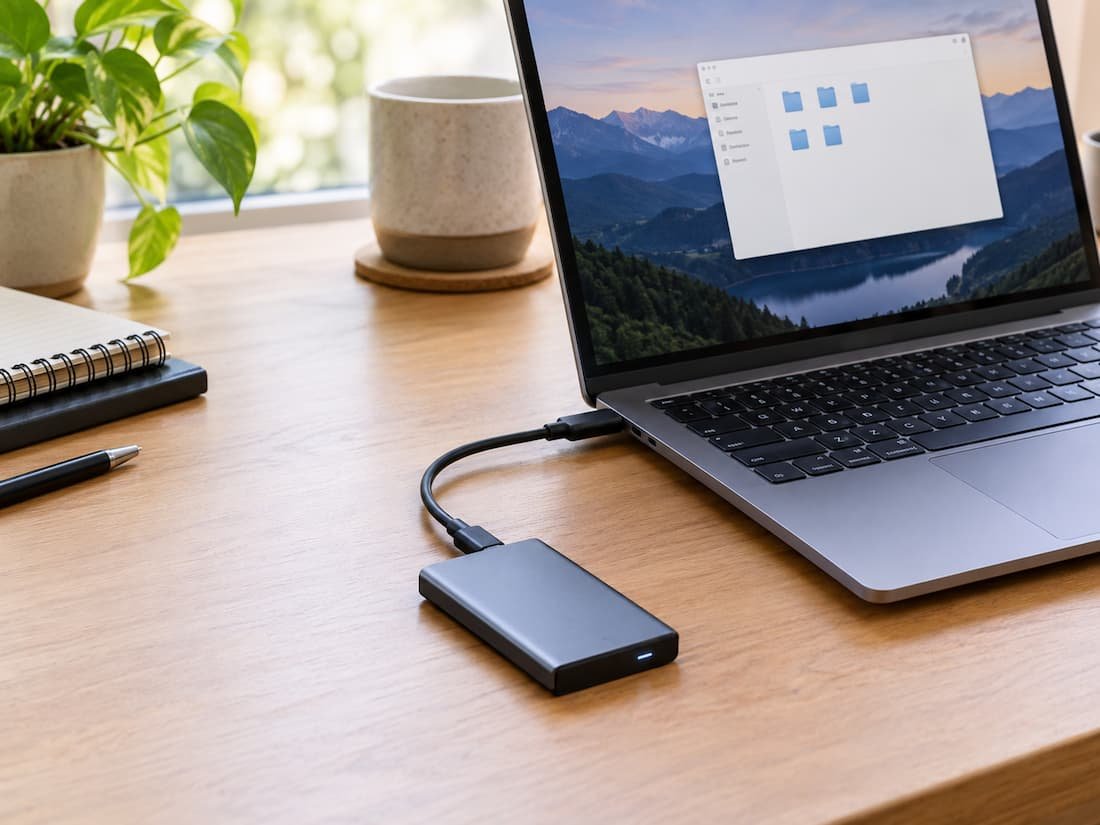
Internal SSDs are usually treated as the obvious choice for fast storage. They sit directly inside the computer, connect through the system’s high-speed storage interface, and avoid the extra connection between the drive and the machine. For an operating-system drive or software that constantly accesses small files, that arrangement still has important advantages. But that does not mean internal storage is automatically the right place for every file.
An external SSD can make more sense when storage needs are temporary, portable, expandable, shared between computers, or simply larger than the internal drive can comfortably accommodate. Modern external SSDs can also be surprisingly fast. Depending on the interface, a portable SSD may use USB 3.2 at 10 or 20 Gbps, USB4, or Thunderbolt, with some newer devices offering several gigabytes per second of practical transfer performance. The important question, therefore, is not simply whether internal storage is faster. It is what role the storage needs to play.
Internal and External SSDs Solve Different Problems
An internal SSD is normally part of the computer’s permanent storage system. On a desktop, this might be an M.2 NVMe drive connected directly to a PCIe slot. On a laptop, the storage may be replaceable, upgradeable, or completely integrated into the system depending on the design. Because the drive is installed inside the computer, there is no external cable, enclosure, or separate device to carry around. The storage is always available when the computer is running. This makes internal storage particularly convenient for the operating system, applications, frequently accessed working files, and workloads that depend heavily on storage latency.
An external SSD changes that arrangement. The storage becomes a separate device connected through a cable. That introduces another layer between the SSD and the computer, but it also creates flexibility that an internal drive cannot provide as easily. The same drive can be disconnected from one computer and connected to another, used as a portable project drive, stored separately as a backup, or replaced without opening the computer. That difference in purpose is often more important than the headline sequential speed.
When Portability Is More Valuable Than Maximum Speed
The clearest reason to choose an external SSD is portability. Imagine a photographer who works on a desktop at home but sometimes takes a laptop to a client location. An internal SSD gives the desktop excellent local storage, but moving a large project between the two computers requires another storage method. An external SSD can act as the working bridge between them.
The same idea applies to students, developers, video editors, IT technicians, and anyone who regularly works across multiple computers. Instead of keeping duplicate copies of a large working dataset on every machine, an external SSD can hold the files that need to travel. This is particularly useful when the data itself is more portable than the computer. A 2TB or 4TB external SSD can contain a project library without tying that library permanently to one system.
The trade-off is that the cable and drive become part of the workflow. If the drive is disconnected, damaged, or left behind, the files are no longer immediately available. For important data, portability should therefore be combined with a separate backup rather than treated as a backup by itself.
When Your Laptop Has Limited Internal Storage
Laptop storage is one of the strongest cases for external SSDs. Some laptops provide limited upgrade options, while others make internal storage replacement difficult or impossible. Even when an internal upgrade is technically possible, replacing the existing drive may involve reinstalling the operating system, migrating data, opening the computer, or paying substantially more for a particular storage configuration.
An external SSD avoids those issues. A laptop with a relatively small internal drive can use external storage for large photo libraries, video projects, archived documents, game libraries, virtual machines, installers, or other files that do not need to occupy the system drive permanently. This does not mean every application should be moved outside the computer. Programs that constantly access their files may behave differently depending on the external interface and workload. But for large collections of relatively independent files, the convenience can outweigh the performance difference.
Before buying one, it is worth checking the computer’s actual ports rather than assuming that every USB-C connector provides the same performance. USB-IF specifications distinguish USB 3.2 Gen 1 at 5 Gbps, Gen 2 at 10 Gbps, and Gen 2×2 at 20 Gbps. USB4 introduces additional capabilities and can provide much higher bandwidth depending on the particular implementation. The connector shape alone does not tell you the maximum storage performance.
When You Need Storage, You Can Move Between Computers
An internal SSD belongs to the computer. An external SSD belongs more naturally to the workflow. That distinction matters when the same files need to move between a desktop, laptop, workstation, or another compatible device. Instead of transferring hundreds of gigabytes over a network or maintaining multiple copies, the external SSD can simply move with the project. This is especially practical for large media files. A collection of video footage can occupy hundreds of gigabytes before editing even begins. Moving that much data repeatedly over a slower network connection can take considerably longer than connecting a suitable high-speed external SSD directly.
Modern portable SSDs have become capable enough that the external interface is no longer automatically a severe limitation. Independent testing has found external USB 3.2 Gen 2×2 and USB4-class drives capable of delivering very high transfer rates, although actual results depend on the drive, enclosure, host port, cable, workload, and thermal behavior. That last point matters. A drive advertised at a particular peak speed does not necessarily sustain that speed throughout a large transfer.
When You Want To Keep Large Files Away From The System Drive
An external SSD can also be useful as a second storage layer. Instead of filling a system drive with every large file, you can keep the operating system, applications, and frequently used documents internally while placing bulky data externally.
For example, a 512GB internal SSD might be perfectly adequate for Windows, applications, documents, and frequently used files if a separate external SSD stores large video archives and other infrequently accessed material. This arrangement can make storage management easier because the internal drive does not have to serve every purpose at once.
It can also make upgrading the computer less complicated. If you replace the laptop or desktop later, much of the data can remain on the external drive and move to the new machine with you. For readers comparing storage capacities, a tool such as TechTalksX’s Data Storage Unit Converter can also help when comparing GB, TB, and other storage measurements without doing the conversions manually.
When An External SSD Is Good Enough For Gaming
Gaming is more complicated because the answer depends on the game, computer, interface, and workload. An external SSD can be perfectly reasonable for storing games, particularly when the internal drive is nearly full. Modern game installations can consume enormous amounts of space, and moving less frequently played games to an external SSD can free the internal drive without deleting the games permanently. However, the connection matters.
A basic USB connection can create a very different experience from a fast USB 3.2, USB 4, or Thunderbolt connection. The drive itself also matters. Two external SSDs using the same nominal interface can have noticeably different performance characteristics because of their controllers, NAND, firmware, cache behavior, and thermal design. Independent testing illustrates why the interface label alone is not enough. Reviews of external SSDs have found significant differences in real-world workloads, including file transfers and sustained writes, even among drives using similar connection standards.
For games, this means the practical question is not simply “external or internal?” It is whether the particular external drive and connection provide the responsiveness the game requires.
When You Work With Large Media Files
Large sequential transfers are one of the situations where a fast external SSD can be particularly useful. Copying a large video project, moving RAW photographs, transferring disk images, or backing up large folders can make storage bandwidth much more noticeable than ordinary web browsing or document editing.
A suitable USB 3.2 Gen 2×2 drive can provide up to 20 Gbps of interface signaling, while USB4 and Thunderbolt-class connections can provide substantially more bandwidth depending on the implementation. USB4 itself supports multiple protocols over the connection, and USB-IF describes USB4 as capable of up to 80 Gbps operation with appropriate certified cables and equipment.
But there is an important distinction between interface bandwidth and actual SSD performance. The SSD has to be capable of supplying the data quickly enough. The computer must also support the required interface. The cable must support the appropriate specification. And long writes can expose thermal limitations or exhaust a drive’s faster write cache.
Tom’s Hardware testing of USB4 external SSDs demonstrates this issue clearly: Advertised peak write performance can differ from sustained performance after the drive’s write cache is exhausted, and thermal behavior can also become important during prolonged transfers. For occasional file copies, these differences may barely matter. For someone transferring hundreds of gigabytes every day, they can become a significant part of the decision.
When You Want A Simple Upgrade Without Opening The Computer
External storage is also attractive because it requires very little physical modification. A desktop user can add an external SSD without opening the case. A laptop user can gain additional capacity without replacing the internal drive. Someone using a compact computer can keep the system itself unchanged while expanding the amount of available storage. That simplicity has value.
An internal upgrade may provide better integration, but it can involve compatibility questions, physical installation, operating-system migration, or access restrictions. An external SSD is often closer to plug-and-use storage. This is particularly useful for computers where internal expansion is inconvenient. Some modern compact systems have fast external connectivity precisely because external devices are expected to provide additional functionality and storage.
For example, current Mac systems can include USB 4 and Thunderbolt connections with bandwidth levels suitable for high-speed external storage, although the exact capabilities vary by model.
When External Storage Is a Better Backup Strategy
There is another reason to own an external SSD that has little to do with performance: separation. A backup stored on the same internal drive as the original files does not provide meaningful protection against that drive failing. An external SSD allows a second copy to exist physically outside the computer. That makes it useful for local backups, system images, project archives, and copies of important personal files.
However, one external SSD should not automatically be considered a complete backup strategy. If the computer and external drive remain beside each other, a theft, fire, electrical incident, or accidental damage could affect both. For important data, having more than one copy and keeping at least one copy separate from the primary system provides a stronger approach. The advantage of the external SSD here is not that it is inherently safer than an internal SSD. It is that the physical separation is easy to create.
Where Internal Storage Still Has A Clear Role
External SSDs do not replace internal storage. The operating system generally belongs on internal storage when the computer is designed around that arrangement. Applications that are used constantly may also benefit from being installed internally, particularly when the internal drive has a faster storage path and lower latency. Internal NVMe storage can also offer much greater bandwidth than a conventional USB-connected SSD because the drive can communicate through a direct PCIe connection rather than passing through an external storage bridge.
The difference becomes especially relevant for workloads involving large numbers of small random operations, high queue depths, or software that continually reads and writes data. An external SSD can still perform well in these situations, but the practical result depends heavily on the interface and device design. AnandTech’s testing of external NVMe enclosures found that real-world application traces could narrow the perceived difference between external and internal storage in some workloads, while the internal SSD remained important to overall performance differences. This is why raw sequential read numbers should not be treated as a complete description of storage performance.
The Cable Can Become Part Of The Performance Problem
One of the easiest mistakes is buying a fast external SSD and connecting it to a slower port or cable. A 20 Gbps SSD cannot operate at 20 Gbps through a host connection limited to 10 Gbps. USB-IF explicitly describes USB devices as operating at the lowest common speed capability when different generations are connected. The same principle applies to USB4 and Thunderbolt. A USB-C connector describes the physical connector, not the complete performance specification. Two USB-C ports can have dramatically different capabilities.
Before buying a high-speed external SSD, check three things:
- The SSD’s interface
- The computer’s actual port specification
- The cable’s supported speed
This is more useful than choosing a drive based only on its advertised maximum transfer rate.
Heat and Sustained Performance Matter More Than Peak Numbers
Small external SSDs have a physical limitation that is easy to overlook: there is not much room for cooling. A portable enclosure may contain a high-performance NVMe SSD and controller inside a very compact body. During short transfers, that can produce excellent performance. During long writes, however, heat can accumulate and performance may decline. The same issue exists with internal SSDs, but desktop systems can provide more room for heatsinks and airflow. Laptops have their own thermal limitations, while portable external drives have even less physical space.
Independent testing of external SSDs regularly measures sustained writes and temperature because the initial burst speed does not tell the entire story. Tom’s Hardware, for example, specifically tests prolonged writes to expose cache exhaustion and thermal behavior. If your workload consists mainly of moving a 20GB folder occasionally, this may not matter much. If you regularly write hundreds of gigabytes continuously, sustained performance should be part of the buying decision.
A Practical Way To Decide
The simplest way to choose is to start with the job rather than the storage technology.
| Your situation | Storage arrangement that makes sense |
|---|---|
| Operating system and frequently used applications | Internal SSD |
| Large files shared between several computers | External SSD |
| Laptop with limited internal capacity | External SSD can add practical capacity. |
| Portable photo or video projects | External SSD |
| Frequently accessed application data | Usually internal SSD |
| Large game library with limited internal space | External SSD can be useful. |
| Local copy of important files | External SSD |
| Maximum storage performance for demanding workloads | Usually internal NVMe |
| Files that need to travel with you | External SSD |
| Long, continuous professional transfers | Fast external SSD with strong sustained performance or internal storage |
The important part is that these are not mutually exclusive choices. A computer can use both. In many cases, the most sensible arrangement is a fast internal SSD for the operating system and frequently used software, combined with an external SSD for large, portable, archived, or shared files.
What To Check Before Buying An External SSD
Capacity is the first obvious specification, but it should not be the only one. Start with the actual amount of data you expect to store. If you need help comparing capacities, the TechTalksX Data Storage Unit Converter can be useful when converting between storage units. Then check the connection. A drive advertised with a 20 Gbps USB interface will only deliver that class of performance when connected to compatible hardware. USB4 and Thunderbolt devices can offer higher bandwidth, but the computer, cable, enclosure, and SSD all need to support the appropriate capabilities.
After that, look beyond the headline sequential speed. Check sustained-write behavior if you regularly move large amounts of data. Consider thermal design if the drive will be used continuously. If portability matters, pay attention to physical durability and cable requirements. Finally, consider how the drive will be used. A compact external SSD that travels in a backpack has different requirements from a desktop external SSD that stays connected to a workstation.
The Decision Is Really About Flexibility
An external SSD makes more sense than internal storage when flexibility is part of the storage requirement. If the files need to move between computers, if the internal drive is too small, if upgrading the computer internally is inconvenient, or if large data needs to remain separate from the system, an external SSD can solve the problem without requiring changes inside the computer.
Internal storage still has an important advantage for the system itself and for workloads that benefit from the lowest-latency, highest-bandwidth connection available. But not every file needs to live there. For many users, the decision is therefore not internal versus external. It is about assigning each type of data to the storage location that fits its job. A fast internal SSD can handle the computer’s core workload, while an external SSD provides additional capacity, portability, project storage, and physical separation. When those characteristics are more valuable than maximum internal performance, external storage stops being merely a compromise and becomes a practical part of the system design.
FAQs
1. Is an external SSD as fast as an internal SSD?
Not necessarily. A high-end internal NVMe SSD can have a much faster direct PCIe connection than a conventional USB external SSD. However, modern USB 3.2, USB4, and Thunderbolt external SSDs can provide very high performance, and the difference may be less noticeable for some everyday workloads than benchmark specifications suggest.
2. Can I Use an External SSD for Games?
Yes. An external SSD can be used for game storage when the computer and game platform support the arrangement. Performance will depend on the SSD, interface, cable, and game workload. It can be a practical way to expand game storage when the internal drive is running out of space.
3. Is USB-C Fast Enough for an External SSD?
USB-C itself does not determine the speed. It is a connector type. The port and connected devices may support USB 3.2, USB4, Thunderbolt, or other capabilities. Check the actual specifications rather than assuming every USB-C port provides the same storage performance.
4. Should An External SSD Be Used As A Backup?
It can be an important part of a backup system because it provides a separate physical copy of your files. However, it should not be the only copy of important data. A second copy stored separately provides protection against problems that could affect both the computer and the attached drive.
5. Does a More Expensive External SSD Always Perform Better?
No. Interface speed, SSD controller, flash type, cache behavior, thermal design, firmware, host compatibility, and workload all influence actual performance. Independent testing has shown that drives with similar interface specifications can behave differently, particularly during sustained transfers.