
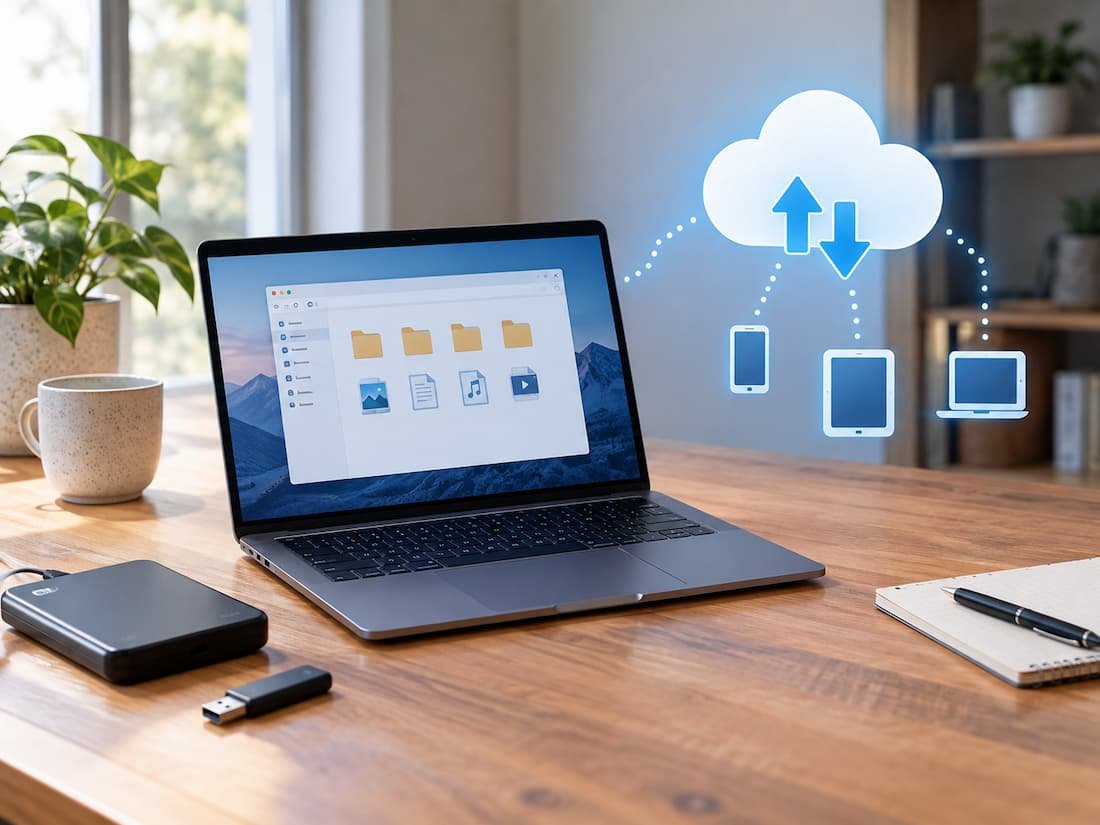
A file can be stored on your computer, on an external drive, in a cloud service, or in several places at once. The confusing part is that these options are often presented as if they are interchangeable. They are not. Local storage gives you direct access to data on a device you control. Cloud storage puts the primary copy, or at least one important copy, on infrastructure operated by another company and accessed through a network. Modern services increasingly blur the distinction by synchronizing cloud files with local folders, allowing some files to remain online-only while others stay downloaded.
That makes the real decision less about choosing between “local” and “cloud” and more about deciding where the primary working copy should live, where backup copies should exist, and which files need to remain accessible without an internet connection.
For many people, the sensible arrangement is not either/or. A working copy can remain local while important files are synchronized or backed up to the cloud. The right balance depends on the size of the data, how often it is accessed, how much offline access matters, and what would happen if the computer or cloud account became unavailable.
Local Storage Gives You Control and Immediate Access
Files stored on an internal SSD or hard drive are immediately available to the operating system without requiring an internet connection. That matters for large files, frequently used projects, and situations where network connectivity is unreliable. A locally stored video project, for example, does not need to be downloaded every time an editing application opens the source material. Large game installations, photo libraries, and databases can also benefit from direct local access because the computer is reading the data from its own storage rather than retrieving it across a network.
Local storage also avoids a recurring cloud-storage dependency. Once you have purchased the drive, the capacity is physically available to you. There may be no monthly storage subscription associated with that particular drive, although drives eventually fail and may need replacement.
That last point is important. Local storage is not automatically backed up. If the only copy of a document exists on one SSD and that SSD fails, the document can be lost. The U.S. Cybersecurity and Infrastructure Security Agency recommends maintaining multiple copies of important data and describes the 3-2-1 approach: three copies, on two different types of media, with one copy stored off-site. A second local drive can protect against some failures, but it does not provide the same protection against events affecting the entire computer or location. If both drives are stolen, damaged by a fire, or encrypted by the same malware incident, having two local copies may not be enough.
Cloud Storage Changes What “Having a File” Means
Cloud storage moves at least one copy of the data onto infrastructure operated by a service provider. The practical advantage is that the file can potentially be accessed from several devices instead of being tied to one computer. Microsoft’s OneDrive, for example, can synchronize files between a computer and the cloud, allowing files to appear in File Explorer while also being stored remotely. Google Drive for desktop provides a similar distinction between streaming files from the cloud and mirroring them locally.
This can be particularly useful for people who work across a desktop, laptop, and phone. A document saved to a synchronized cloud folder can become available on another device without manually copying it to a USB drive.
Cloud storage can also make collaboration easier. Services can provide sharing permissions, simultaneous editing, and access from different locations. Those features are fundamentally different from simply having a larger SSD installed in a computer. But cloud access introduces another dependency: the account and network connection. An online-only file may be visible in your file manager but still unavailable when the internet connection disappears. Microsoft’s Files On-Demand feature makes this distinction explicit. Online-only files can appear in File Explorer without consuming local disk space, but they cannot be opened without an internet connection until they are downloaded or marked as always available.
The Hybrid Model Is Already Normal
Modern cloud applications increasingly make the local-versus-cloud distinction less obvious. Google Drive for desktop, for example, offers streaming and mirroring. With streaming, files are primarily stored in the cloud, and only selected or recently used data occupies local storage. With mirroring, files are stored both in the cloud and on the computer, consuming local disk space while remaining available offline.
OneDrive’s Files On-Demand works along similar lines. A file can remain online-only, become locally available after being opened, or be marked to remain permanently available on the device. This hybrid approach can solve a problem that neither storage method handles particularly well on its own. Large archives do not have to occupy an entire laptop SSD, while frequently used documents can remain available locally for fast offline access. The trade-off is that synchronization requires users to understand what the icons and status indicators actually mean. A file that looks like it is sitting in a familiar folder may not necessarily be stored locally.
| Characteristic | Local Storage | Cloud Storage | Hybrid Approach |
|---|---|---|---|
| Internet required | No | Often, depending on access mode | Only for cloud-only files |
| Local disk usage | Full size of stored files | Can be minimal | Selective |
| Access speed | Usually limited by local hardware | Depends on network and service | Local for selected files |
| Access from multiple devices | Requires copying or synchronization | Designed for it | Designed for it |
| Offline availability | Naturally available | Must be downloaded or cached | User-controlled |
| Hardware failure protection | Requires separate backup | Provides an off-device copy but is not automatically a complete backup strategy | Can provide both |
| Recurring storage fee | Usually none after hardware purchase | Common for larger capacities | Depends on the cloud plan |
| Collaboration | Limited without additional software | Usually strong | Usually strong |
Large Files Make the Decision More Complicated
Storage capacity is one of the clearest reasons to keep some data locally. A collection of high-resolution photographs, raw video footage, or large project files can consume hundreds of gigabytes or several terabytes. Uploading and downloading that data repeatedly can be impractical even when the cloud service supports it.
The TechTalksX Data Storage Unit Converter can be useful when comparing file sizes, drive capacities, and cloud-storage allocations across different units. The distinction becomes especially useful when a service quotes storage in one unit while an application or operating system displays another. But capacity is only half the issue. Transfer time matters too.
Uploading 500GB of video footage to the cloud is fundamentally different from uploading a few text documents. The time required depends on the available upstream connection, service limitations, and network conditions. Once the data is uploaded, retrieving the entire collection also consumes bandwidth and time. For large working files, local storage therefore often makes more practical sense even when the same files are also backed up to the cloud.
Cloud Storage Is Not the Same as Backup
This is one of the most important distinctions in the entire decision. A synchronized folder is designed to keep versions of files consistent across locations. A backup system has a different purpose: preserving recoverable copies so that data can be restored after deletion, corruption, hardware failure, or another incident.
Synchronization can sometimes propagate unwanted changes. If a file is deleted from a synchronized folder, that deletion may also be synchronized to the cloud and other connected devices. Cloud providers may offer recycle bins, version history, or recovery features, but those features vary by service, account type, and retention policy. CISA’s backup guidance therefore recommends maintaining multiple copies rather than treating a single cloud copy as sufficient protection. Its 3-2-1 model specifically separates the primary data from backup copies and recommends keeping one copy off-site.
A useful setup for important files might therefore look like this:
- One working copy on the computer.
- One synchronized or backed-up copy in the cloud.
- One additional backup on a separate physical device or another appropriate backup destination.
The exact arrangement can vary, but the principle is that storage and backup solve different problems.
Offline Access Can Be More Important Than Cloud Convenience
Cloud storage is attractive when files need to follow you between devices, but internet access is not guaranteed. Travel, network outages, poor Wi-Fi, metered connections, and restricted networks can all make cloud-only files inconvenient. Even in places with fast internet, a large file that has to be downloaded before it can be opened may interrupt the workflow.
Google Drive explicitly allows users to make files available offline, while Drive for desktop lets users choose between streaming and mirroring. OneDrive similarly allows files to be marked as always available on a device. Those files occupy local storage but remain accessible when the computer is offline. This creates a useful rule: files that must work without an internet connection should have a local copy. That might include travel documents, active work projects, frequently used reference material, emergency records, and files needed during network outages.
Privacy and Control Require More Than Looking at Storage Location
Keeping a file locally can reduce dependence on a third-party storage provider, but it does not automatically make the data private. Malware, stolen computers, unauthorized accounts, and insecure backups can all expose local files. Cloud storage introduces another layer of consideration because data is being handled by a service provider. Users need to understand account security, sharing permissions, encryption practices, retention policies, and recovery options.
The practical question is therefore not simply “Is the cloud safe?” or “Is local storage safer?” Those statements are too broad. Instead, ask what protections are actually present. A local laptop protected by a strong account, device encryption, and secure backups may have a very different risk profile from an unprotected desktop. A cloud account protected by strong authentication and carefully managed sharing permissions is also different from one using a weak password and broad public links.
The storage location is only one part of the security model.
When Local Storage Makes More Sense
Local storage tends to be particularly useful when:
- Files are very large and frequently accessed.
- Applications need high and predictable local performance.
- The work must continue without internet access.
- The data is used repeatedly on one main computer.
- Uploading and downloading would consume substantial bandwidth.
- You already maintain an independent backup system.
Video editing, large photo catalogs, software development projects, game installations, and other performance-sensitive workloads commonly fit this pattern. The important caveat is that local storage should not become the only copy of important information.
When Cloud Storage Makes More Sense
Cloud storage becomes more useful when accessibility and synchronization are more important than keeping everything physically local.
It can be especially convenient when:
- Files need to be accessed from several devices.
- Multiple people need to collaborate.
- You regularly replace or upgrade computers.
- You want an off-site copy of important data.
- Local disk space is limited.
- You need to share selected files without physically transferring them.
OneDrive’s Files On-Demand and Google Drive’s streaming model demonstrate how cloud storage can also reduce the amount of local disk space required. However, online-only storage should not be confused with universal availability. If the network is unavailable, the cloud service is experiencing an outage, the account is inaccessible, or a file has not been downloaded for offline use, access can be interrupted.
What Happens When You Replace Your Computer?
This is one area where cloud storage can substantially simplify the transition. A properly synchronized cloud library can allow a new computer to reconnect to the same files without manually copying an entire collection from the old machine. Microsoft specifically supports syncing OneDrive files to a new computer and provides controls for choosing which folders remain available locally.
Google Drive provides a similar model. Streaming can keep most files in the cloud while allowing selected files to remain offline, while mirroring maintains a full local copy as well. But migration is another reason to maintain a true backup. If the old computer fails before synchronization has been completed, or a file is excluded from the cloud service, the cloud library may not contain everything that existed locally. A new computer is therefore easier to set up with cloud synchronization, but the process should not depend entirely on synchronization being perfect.
The Better Question Is Where Each Copy Should Live
Local storage and cloud storage are not competing technologies that require every file to choose one permanent home. Modern operating systems and cloud applications increasingly support a mixture of local, synchronized, cached, and online-only files. The more useful decision is to separate three needs: working access, availability, and recovery.
Files that require maximum local performance or reliable offline access generally benefit from having a local copy. Files that need to follow you across devices or be shared with other people benefit from cloud storage. Important files should normally have additional protection beyond either a single local drive or a single synchronized cloud location.
For many users, the practical arrangement is therefore a hybrid one: keep current and frequently used files locally, synchronize or back up important data to the cloud, and maintain another independent backup when losing the data would be unacceptable. The goal is not to put everything on the fastest SSD or everything in the cloud. It is to place each copy where its speed, availability, capacity, security, and recovery requirements make sense.
FAQs
1. Should important files be stored locally or in the cloud?
For important files, keeping only one location is risky. A local working copy combined with an off-site cloud backup or synchronized copy can provide both convenient access and protection against some local failures.
2. Is cloud storage a backup?
Not automatically. Synchronization and backup have different purposes. A synchronized file can reflect deletions or changes across devices, while a backup is intended to provide a recoverable copy. CISA recommends multiple copies and the 3-2-1 backup approach for important data.
3. Do cloud files take up space on the computer?
Not necessarily. Services such as OneDrive Files On-Demand and Google Drive’s streaming mode can keep files primarily in the cloud while using local storage selectively. Files deliberately made available offline will consume local disk space.
4. Is local storage faster than cloud storage?
For files already stored locally, applications generally avoid the network transfer involved in retrieving cloud-only data. The practical difference depends on the local storage hardware, network connection, cloud service, and application. Cloud files that are already cached or synchronized locally may behave much like ordinary local files.
5. What should I keep offline?
Keep local copies of files that you need when internet access may be unavailable, especially active projects, travel documents, frequently used work files, and anything required during an outage. Cloud services generally provide controls for marking selected files as available offline.